RemotePC™ Wake-on-LAN (WoL)
Use the Wake-on-LAN option in RemotePC to wake up an offline computer and establish a remote connection.
Ensure the following settings and hardware requirements are fulfilled before using the Wake-on-LAN option:
- Network card that supports Wake-on-LAN.
- Active internet connection.
- Connected to the Internet via LAN cable.
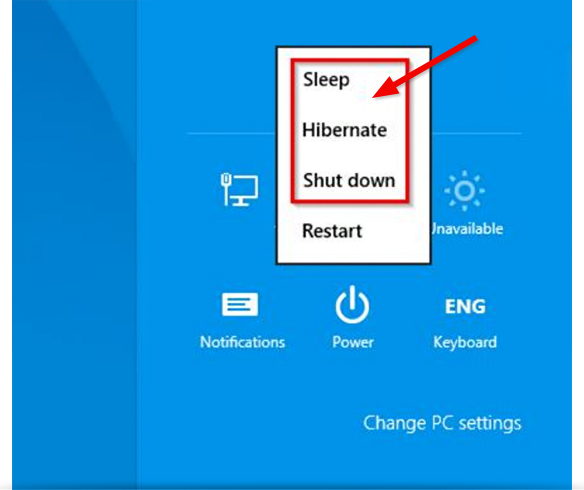
- Computer should be in any of the following power states:
- Sleep
Start > Sleep - Hibernate
Start > Hibernate -
Shut down (Soft off)
Start > Shut down
Note: Not supported under Mac OS X
After ensuring that our computer meets the above requirements, you can proceed with configuring your Windows machines for WOL.
Set up Windows
To wake up a computer via WoL, you should enable WoL in BIOS settings and configure the network card.
To enable WoL in BIOS settings,
- Switch on the computer and press ESC, F1, F2, F8 or F10 during the initial startup. Depending on the BIOS manufacturer, a menu would appear.
- Go to the 'Power' tab and enable 'Wake Up On LAN'.
- Save and exit the BIOS setup.
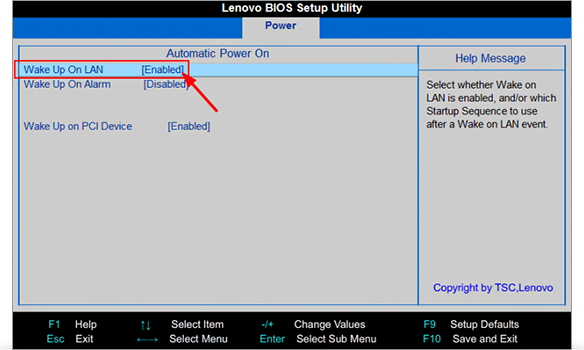
Note: If there is no option to enable Wake-on-LAN in BIOS setup, refer to the motherboard manual to ensure your computer supports Wake-on-LAN.
Configure Network Card
The network card must be configured in such a way that the power is supplied all the time.
To configure network card,
- Switch on the computer and go to 'Control Panel' -> 'Hardware and Sound'.
- Click 'Device Manager'.
- Expand 'Network adapters' and right click on the adapter in use. Select 'Properties'.
- Go to the 'Power Management' tab and enable 'Allow this device to wake the computer' option.
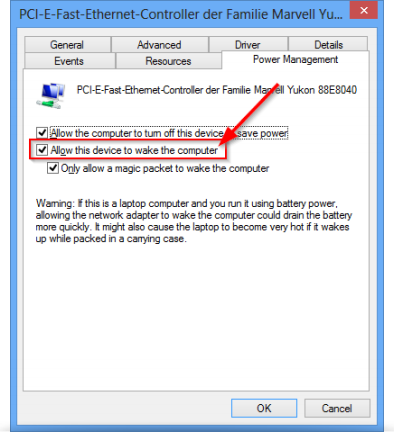
Note: The configuration steps may vary depending on the network card and operating system.
Configure Windows 8
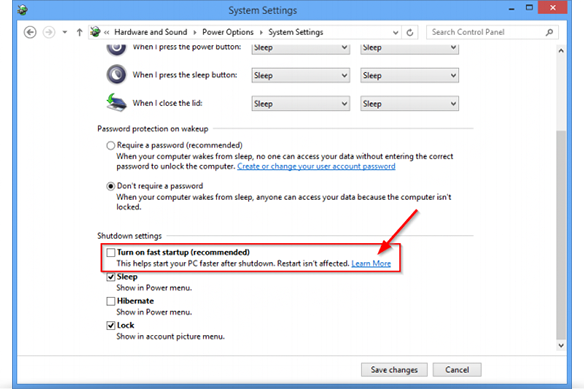
In Windows 8 OS the standard shutdown procedure puts the computer into the hybrid shutdown state, as Windows 8 does not support Wake-on-LAN for this state. Hence we recommend you deactivate the fast startup. Once fast startup is deactivated, the computer will always go into hibernate mode during shut down.
To deactivate the fast startup,
- Switch on the computer and go to 'Control Panel' -> 'Power Options'.
- Click on the 'Change what power buttons do' option on the left menu bar.
- Disable 'Turn on fast startup (recommended)' option displayed in the 'Shutdown settings' section.
See steps to enable WoL and how to wake up an offline remote computer via WOL.