
Google Workspace Backup is a cloud application backup, SaaS backup, and recovery service that offers a comprehensive backup, export, and restore solution for your Google Workspace data. Google Workspace Backup adds an additional layer of security against accidental data deletions, cyberattacks, and ransomware.
According to Google Workspace's Shared Responsibility Model, Google is responsible only for the bulk of security and service uptime on the platform. The onus of securing the data on the platform against loss falls solely on the user.
Additionally, in-built tools like Google Vault and Google Admin provide only data archival and partial recovery flexibilities. With no options for backups, versioning, or point-in-time data recovery, your Workspace data is vulnerable to loss from human error, malware, or hardware failure. Hence, it is essential to protect your Google Workspace data with a reliable third-party backup and recovery solution.
Google Workspace Backup supports backup of Gmail, Google Drive, Google Shared Drives, Google Contacts, Google Calendar, and Google Classroom.
Below are brief details of the data that can be backed up and restored using the application.
Gmail
- Search data by username or email address
- Backup and recover specific data, labels, or individual messages
- Backup and restore an entire label or an entire mailbox
Google Drive
- Backup, search, export, and recover data from My Drive
- Backup items included in Shared Drives
- Google Workspace Backup currently supports Google Docs, Google Sheets, Google Slides, Google Forms, and Google Drawings.
Google Contacts
Users can back up, export and restore all contacts or individual contact cards.
Google Calendar
Users can back up, export, and restore entire Calendars or individual Calendar events.
Google Classroom
- Backup and restore Classroom data for selected classes or for all classes under your domain.
- Search and export data by class name.
- Backup and recover Classwork data, including announcements, assignments, classwork, people, grades, and drive.
Yes, Google Workspace Backup automatically detects and backs up all the Shared Drives in your Google Workspace account, including those accessible and those not accessible to the Super Administrator.
To get started,
- Sign in to your RemotePC account.
- Click Google Workspace.
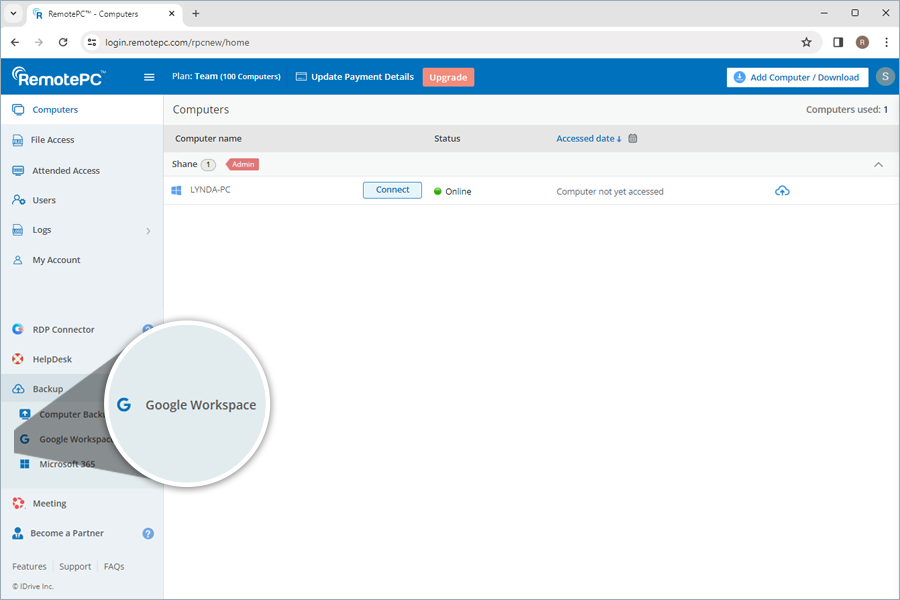
- Click Enable. You will be redirected to the account connection page.
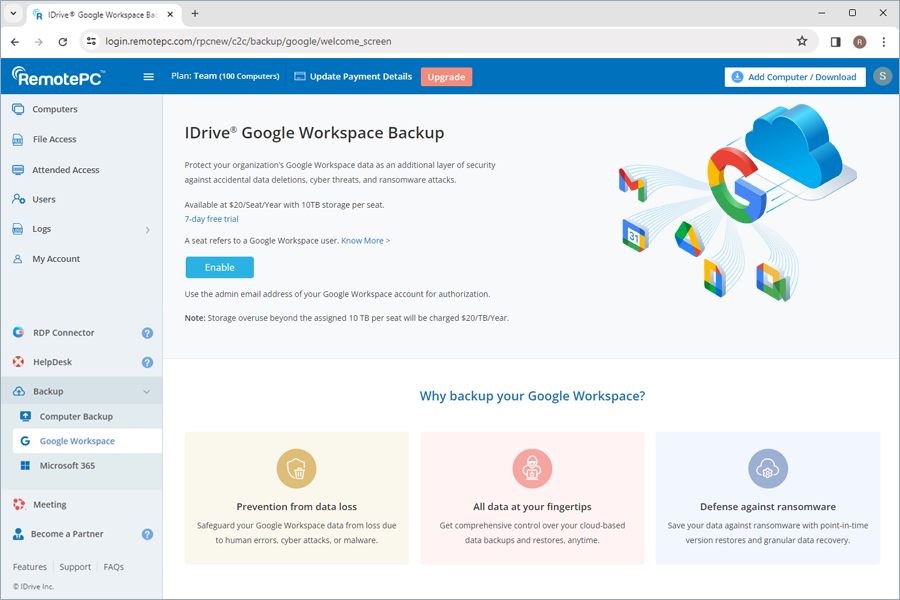
- When connecting via the Workspace app, the admin of the Google organisation will need to complete two steps.
- Install the IDrive App from the Google Workspace Marketplace. After installation is complete, the user should wait several minutes for the permissions to apply.
- The user should then return to the account connection page and click Step 2: Connect Google Account.
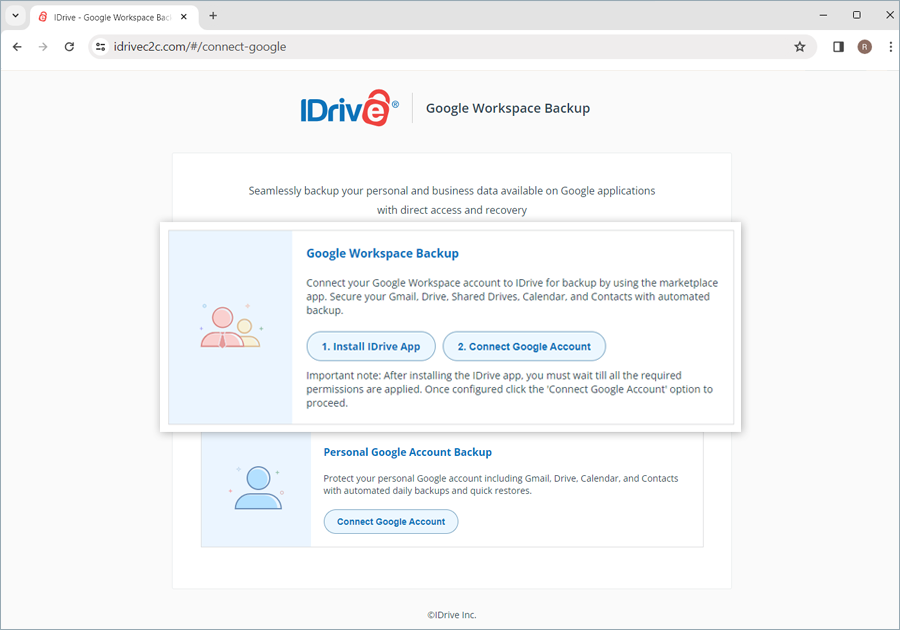
- After that, the user should go back to the account connection page and click on the step 2, Connect Google Account.
- Click the account you want to connect. Once authorized, you will be redirected to the dashboard of your Google Workspace Backup account.
- Click Create.
Your Google Workspace will be automatically synced with the RemotePC Google Workspace Backup application for backup, and the user data will be displayed on the screen. You can now manage backups, exports, and restores for all the users and shared drives in your Google Workspace account from the web console.
Yes, you can rename a domain in Google Workspace Backup.
To rename,
- Click
 next to your Google Workspace Backup domain name.
 - The Edit Details popup opens.
- Edit the name and click Save.
Alternatively, under Account Information > Provider, click Edit domain and modify the domain name.
Yes, RemotePC supports backing up your Personal Google accounts, helping you secure your Gmail, Drive, Calendar, and Contacts.
To back up your personal Google account,
- Sign in to your RemotePC account.
- Click Google Workspace.
- Click Enable.
- Select a Region from the drop-down list to store your Google Workspace backups.
- Click Proceed.
- On the Google account connection page, click Connect Google Account under Personal Google Account Backup.
- Select the Google account you wish to connect and click Select all to grant access permissions. This step is necessary for successful backups.
Your personal Google account will be automatically synced with the Google Workspace Backup application.
Yes, you can access your backed-up data across Drive, Gmail, Shared Drives, Calendar, Contacts, and Google Classroom from anywhere via the web console. Similarly, manage backups and restore the backed-up data from any location via the web.
The web console has the following sections:
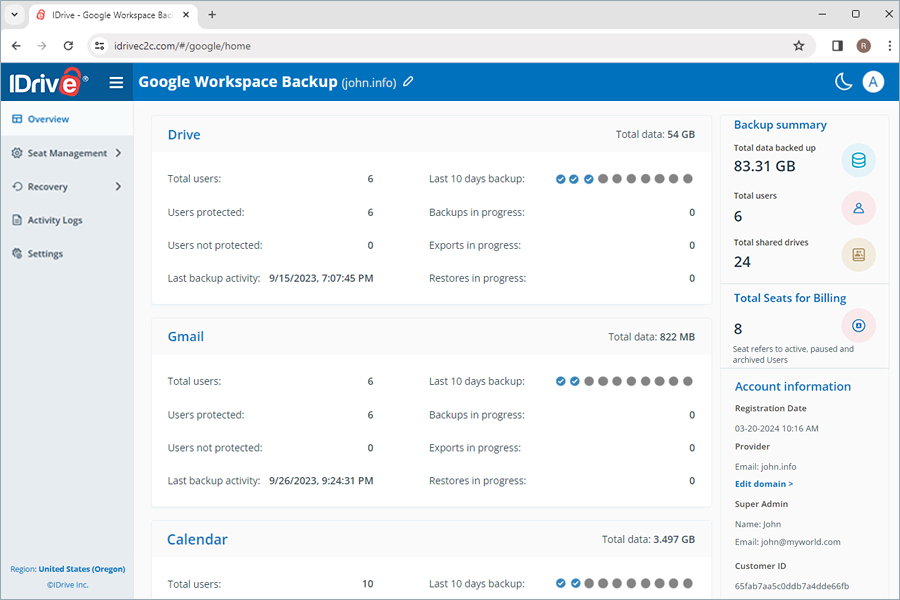
- Overview: Get an overview of the user accounts, backup, exports, and restore summary of all Google Workspace users across Drive, Gmail, Shared Drives, Contacts, Calendar, and Google Classroom.
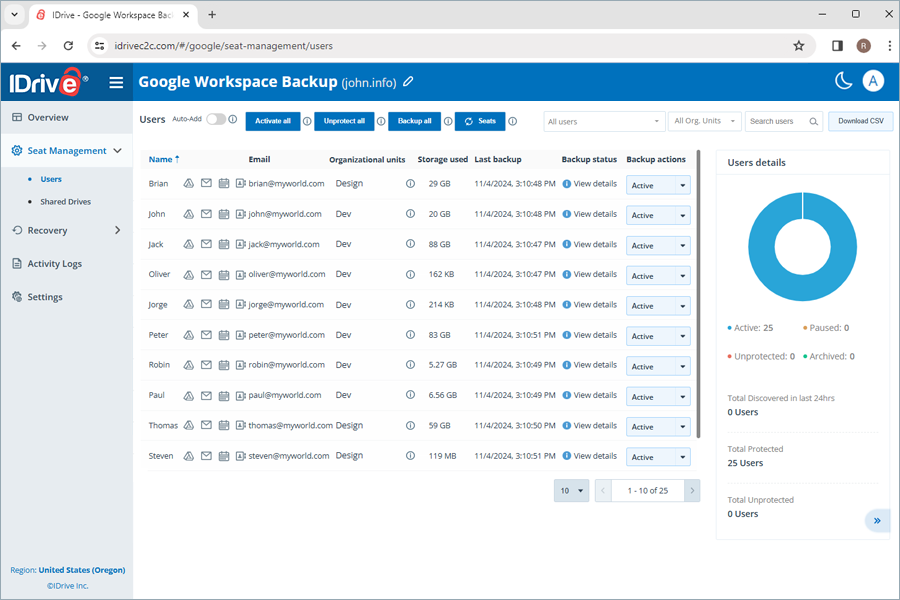
- Seat Management: Add, view, and manage user accounts across the entire Google Workspace Suite.
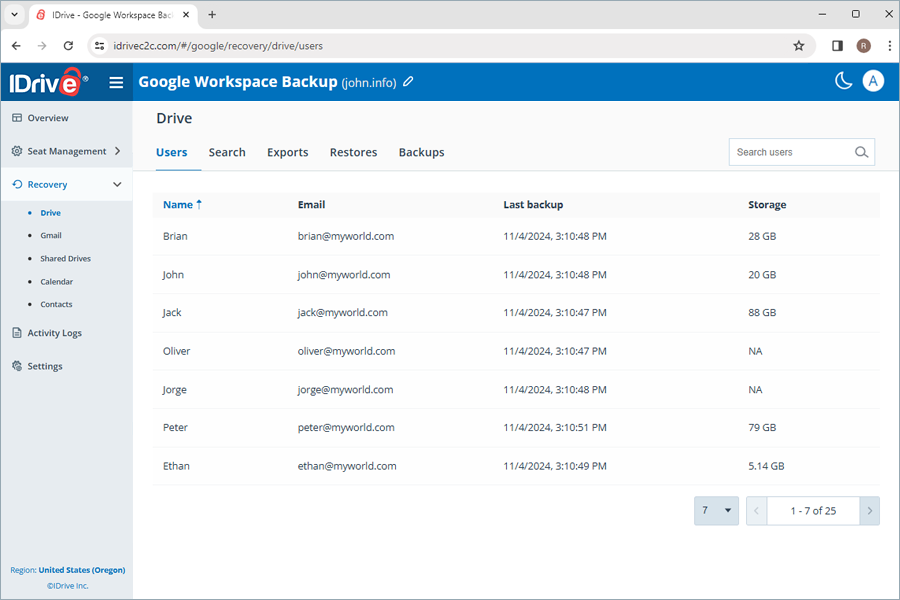
- Recovery: View, manage, and restore point-in-time backups of all users across OneDrive, Exchange, SharePoint, and Teams. Search, download, restore, and monitor specific data from specific users across the Google Workspace suite.
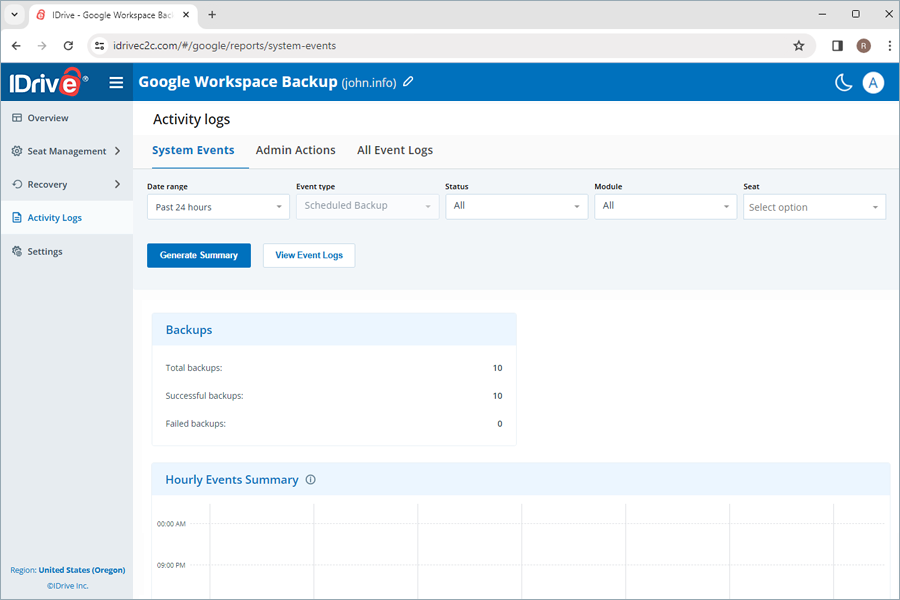
- Activity logs: View activity logs for all users across the account.
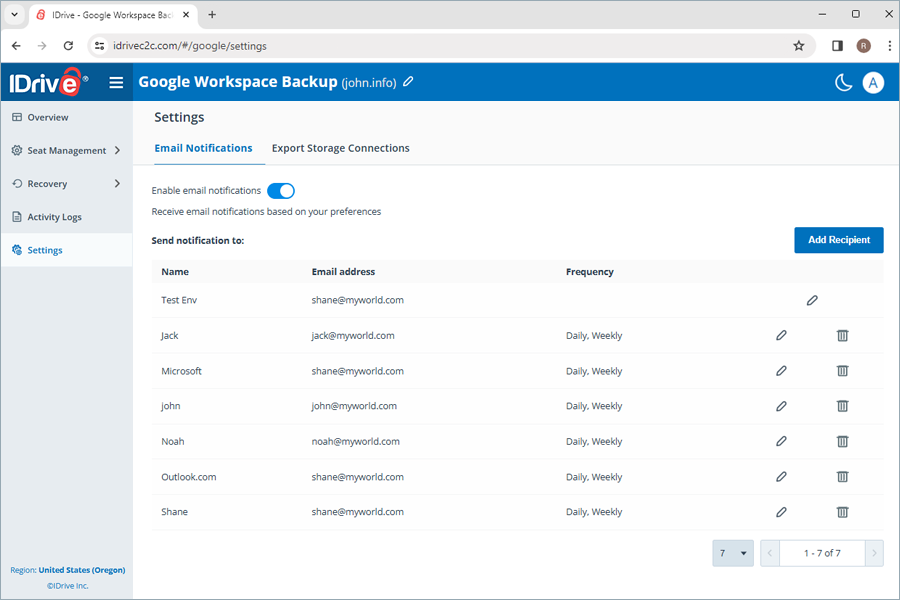
- Settings: Enable daily backup status notification to receive emails for completed, failed, and in-progress backups. Set up a new connection with the storage destination of your choice to export the backed up data.
Google Workspace backup prioritizes data security in the following ways:
Automated data backup
Your data is automatically backed up three times a day, providing regular and reliable protection for critical business data.
Multi-layered data security
- Google Workspace backup stores your data across top-notch data centers and secures it with industry-standard 256-bit AES encryption at both the transfer and storage layers.
- Each authenticated data transmission and user interaction from Google Workspace is processed over TLS 1.2-encrypted connections.
- 0Auth-based authentication verifies your Google Workspace user accounts without requiring their passwords.
Business compliance
We implement data control measures across operations, software, and infrastructure to help companies comply with regulatory standards such as HIPAA, SOX, GLBA, SEC/FINRA, and PCI DSS.
Google Workspace backup uses IDrive® e2 technology. IDrive® e2 ensures the following and assists users in meeting HIPAA compliance:
- Physical security of the data centers
- Strong authentication and authorization controls for cloud, storage, and networking infrastructure
- Encrypts data at rest and in transit to safeguard confidential patient information
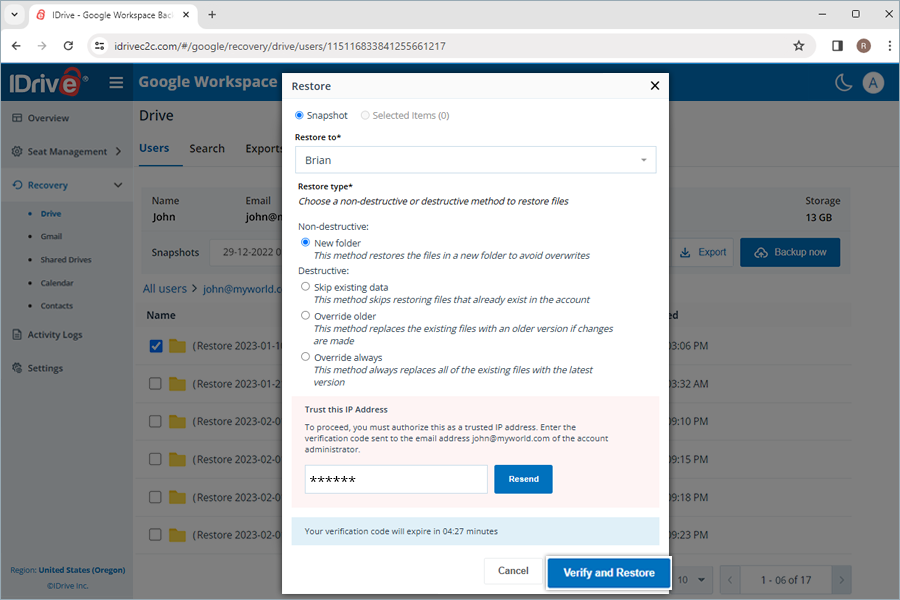
When using a new IP address to export or restore data, you must authorize it by entering the verification code sent to the account administrator's email address. This step provides an additional layer of security for your data.
Yes. You can link a supported storage provider and export your Google Workspace backup snapshots to that destination.
To set up a storage connection:
- Open Settings.
- Go to Export Storage Connections.
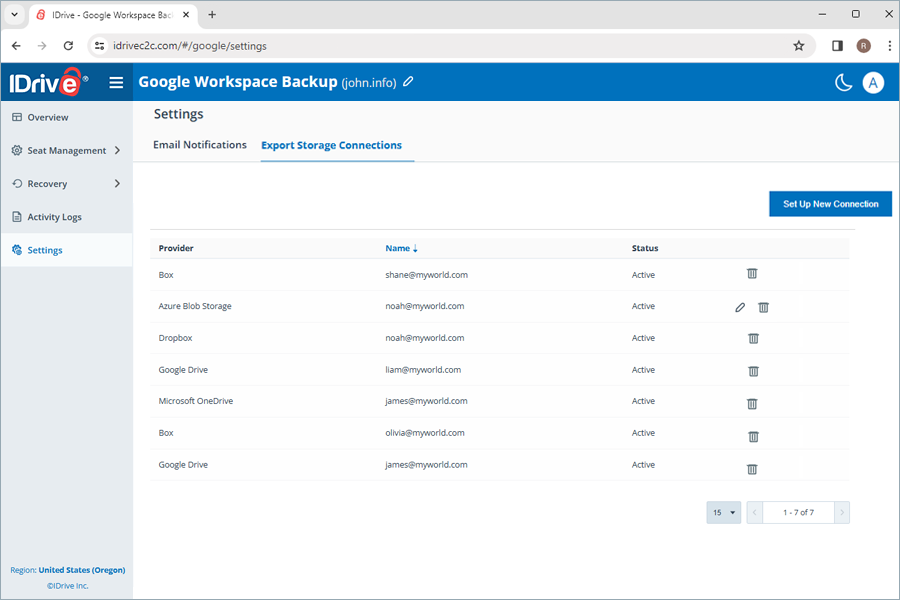
- Click Set up new connection.
- Select your preferred storage provider (for example, Google Drive or Azure Blob).
- Click Set up new connection and sign in to authenticate your account.
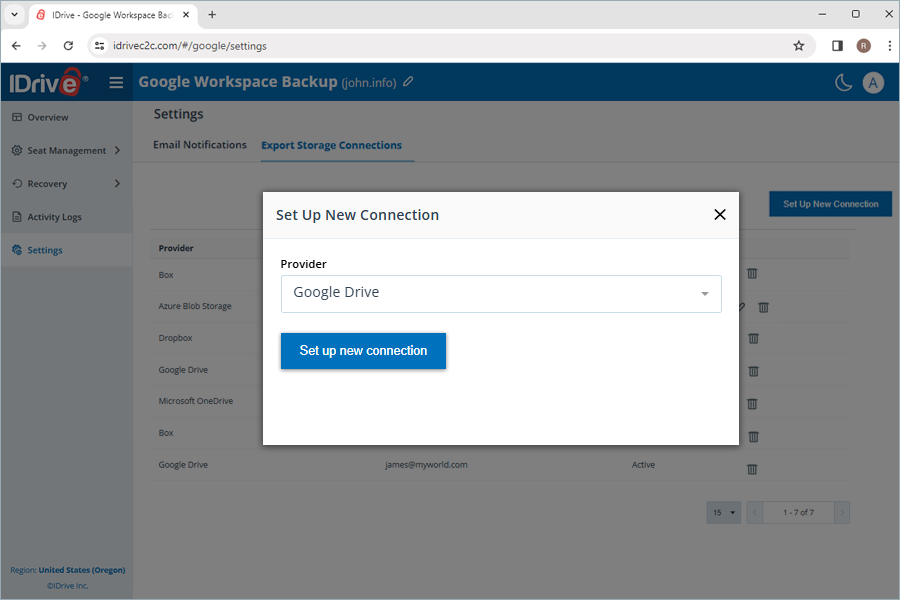
- After verification, the storage account will appear in the list of configured connections.
Note: A new storage connection can also be created during the backup export process.
To delete a configured connection:
Hover over the connection, click  , and confirm by clicking Yes.
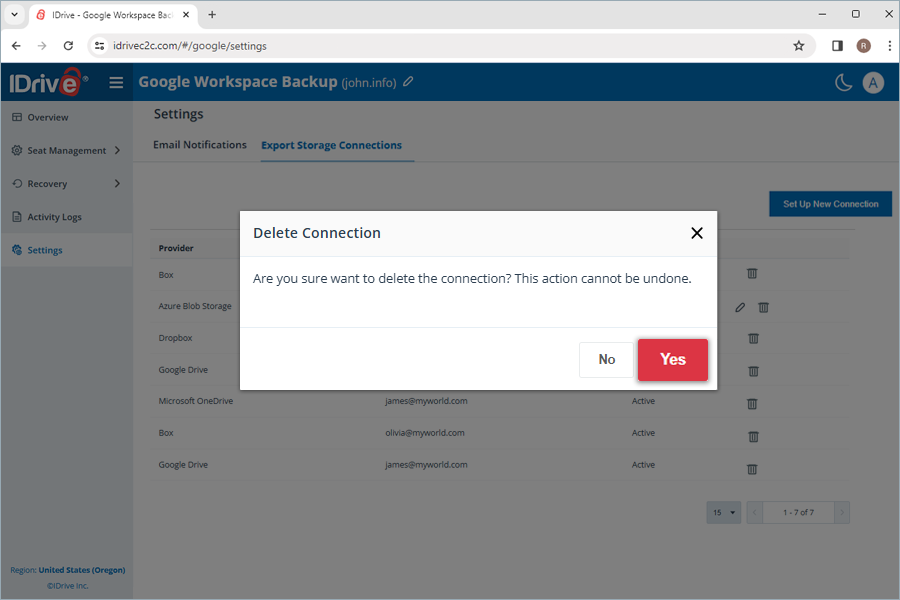
Note: Deleting the connection will not remove any backup data that has already been exported to the storage destination.
When backing up Google Workspace files (such as Docs, Sheets, Classroom files, etc.) to the cloud, they cannot be downloaded in their original Google Drive format. Instead, they are exported to a standard format, which typically results in larger file sizes. Additionally, the previous and deleted versions of the files are also considered in the size calculation, contributing to the increased overall size.
Backup of users under Google Workspace Business/Enterprise - Archive User Licence is not supported. However, once a Google Workspace account has been backed up in RemotePC, you can always restore or export its data, even if the account is suspended, archived, or deleted in the Google Admin Console.
You can also use RemotePC to affordably retain and preserve the data for user accounts that have not been actively backed up.
You will need to reactivate the archived account in the Google Admin Console before we can back up the data. After the backup is complete, you can archive the account again or even remove it from your Google Workspace domain without worrying about data loss or incurring high charges for Archived User Licenses.
What do I do when I get this "Error:"unauthorized_client", Description:"Client is unauthorized to retrieve access tokens using this method, or client not authorized for any of the scopes requested.", Uri:"".. ."?
Please follow the instructions below to resolve this issue.
- Log in to the Google Workspace Domain Admin console from the Domain Admin Login.
- Navigate to Google Workspace Marketplace apps, then go to Apps List.
If the IDrive® backup for Google Workspace™ app is not listed
- Click Install App
- Search for IDrive® backup for Google Workspace™ app
- Perform Admin Install ( Select: Everyone at your organization radio button)
If the IDrive® backup for Google Workspace™ app is listed
- Select IDrive® backup for Google Workspace™ app
- Click Grant access
- Status should be Status: Granted
Once configured with Google Workspace, Google Workspace Backup runs a full automated backup of your Gmail, Google Drive, Google Shared Drives, Google Contacts, Google Calendar, and Google Classroom for all users.
Google Workspace Backup enables automated data synchronization, so that after the initial full backup, all subsequent changes are incrementally backed up.
Google Workspace Backup runs up to three automated backups every day for all the users of your organization. These system backups run on a predefined schedule for the entire organization.
In the event of a failed backup, the backup is run again immediately till successful.
Will the subsequent changes in my backed-up files be transferred incrementally to Google Workspace Backup?
Yes, Google Workspace Backup enables automated data synchronization. After the initial full backup, subsequent changes are incrementally backed up.
How do I back up Drive, Gmail, Calendar, Contacts, and Classroom data for a specific user from my Google Workspace Backup account?
To perform a backup for any specific user,
- Go to the Recovery tab on your Google Workspace Backup dashboard.
- Select the required application from which you want to back up data for the user:
- Drive - To back up the user's drive data.
- Gmail - To back up the user's Emails and Folders data.
- Calendar - To back up the user's calendar schedules and events.
- Contacts - To back up the user's contact cards.
- Classroom - To back up the user's classroom data.
- Click the user account for which you want to back up data.
- Click Backup now.
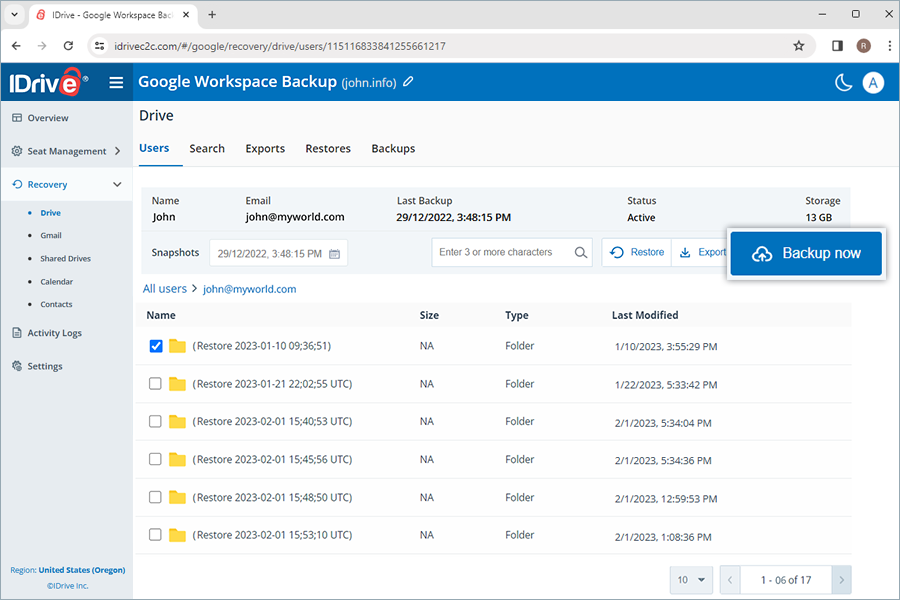
The backup progress will be displayed in real time. The backup details can be viewed under Backups.
Note:
- When backing up a user for the first time, you can check the current backup size by clicking
 .
. - Running a manual backup does not affect the auto-scheduled backups.
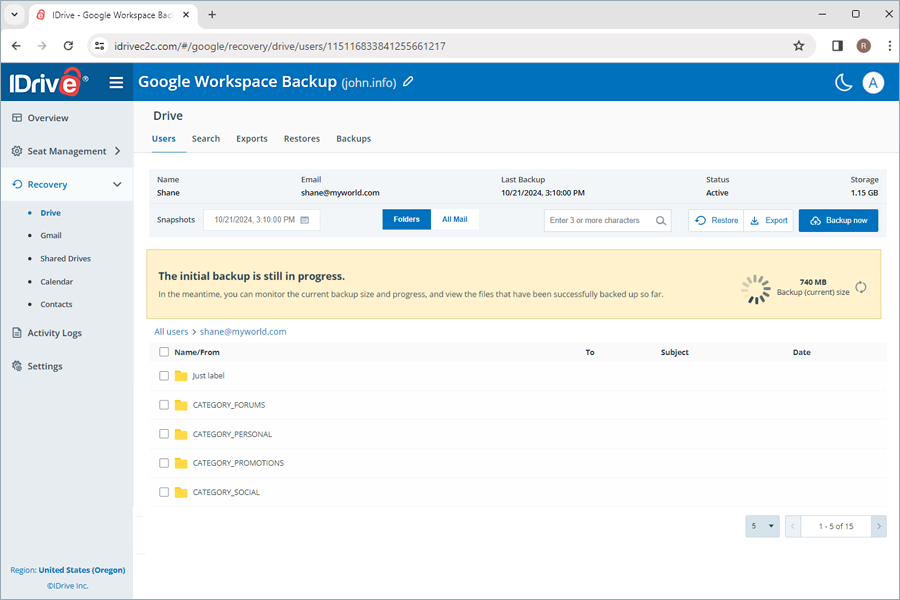
How do I back up the data from a specific user's Shared Drives in my Google Workspace Backup account?
To perform a Shared Drives backup for any specific user,
- Go to the Recovery tab on your Google Workspace Backup dashboard.
- Select Shared Drives.
- Click the shared drive you want to back up.
- Click Backup now.
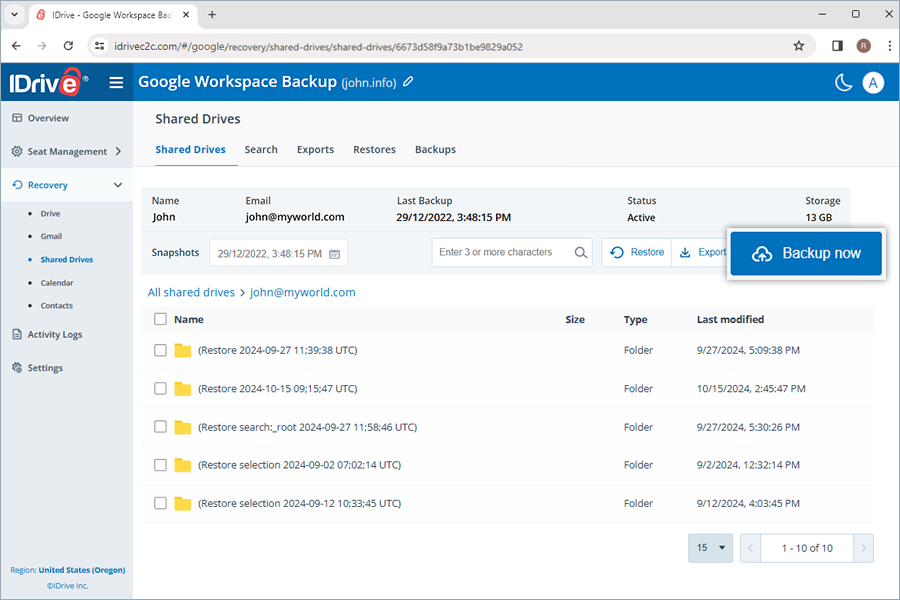
The backup progress will be displayed in real time. The backup details can be viewed under Backups.
Note:
- When backing up a user for the first time, you can check the current backup size by clicking .
- Running a manual backup does not affect the auto-scheduled backups.
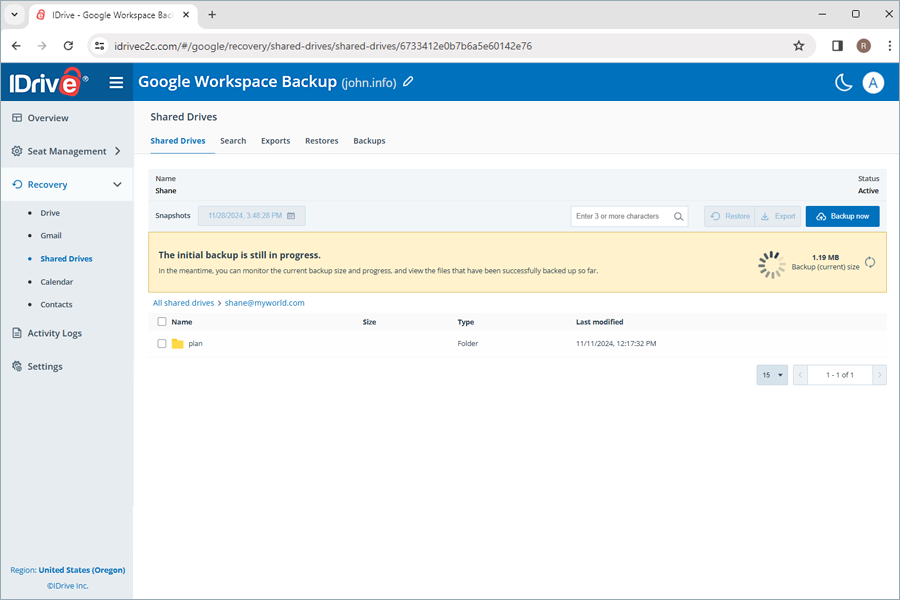
You can back up your Google Classroom account data by following the steps below.
- Navigate to Classroom under Seat Management.
- The seats with Backup actions set to Active can be backed up. To ensure that all available seats are set to Active, click Activate all. Clicking this button changes the status of unprotected and paused classes to active.
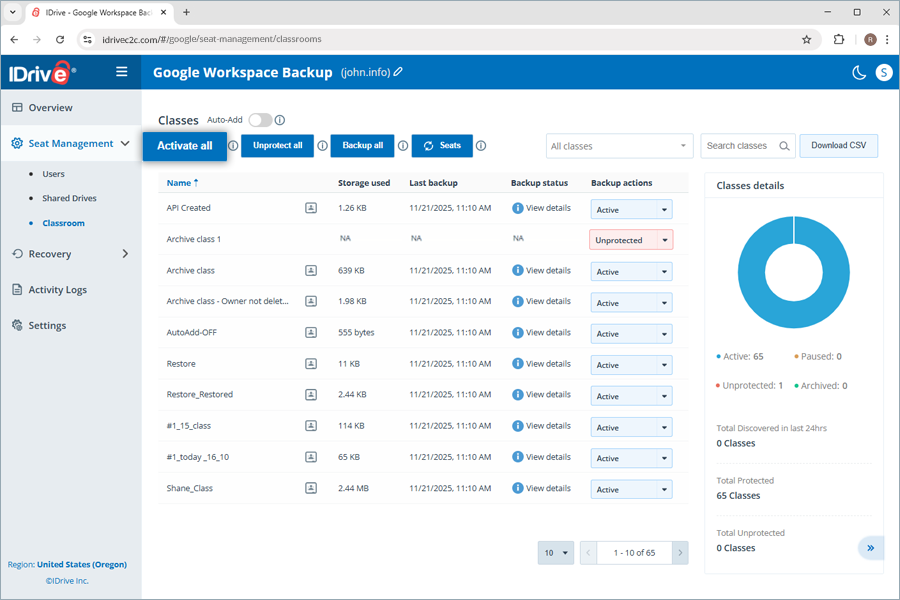
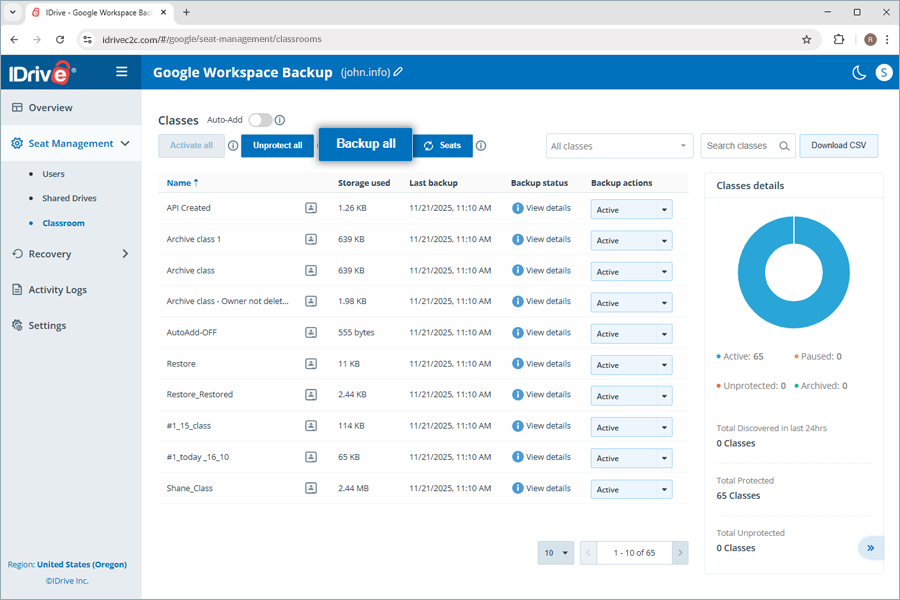
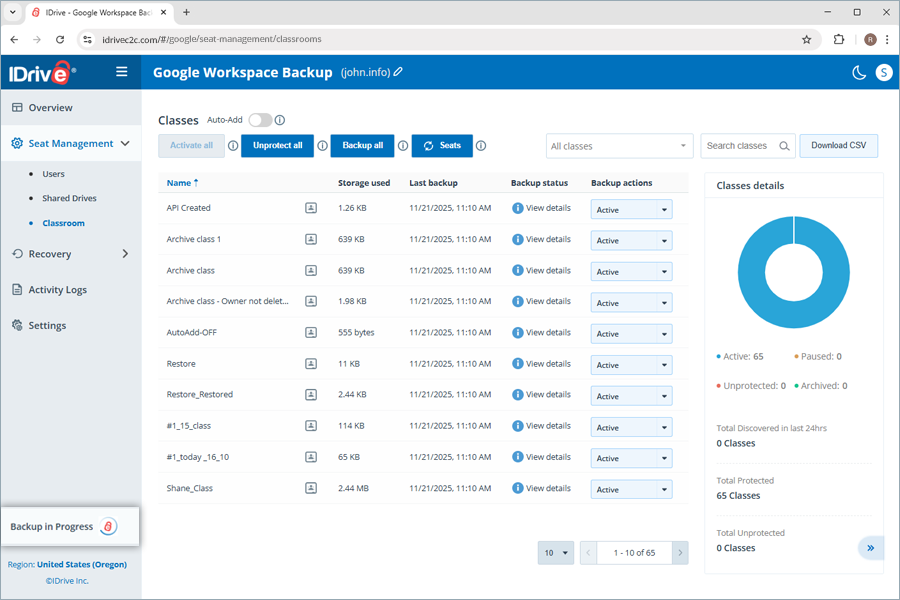
- Click Backup all. The backup for all the active classes begins.
A dialog Backup in progress appears in the left-side panel.
To perform a selective backup for particular classes,
- Navigate to Classroom under Recovery.
- Select the class you wish to back up, then click Backup now.
A dialog Backup in progress appears in the left-side panel.
Once the classes are backed up, you can locate the backups by following the steps below.
- Navigate to Classroom under Recovery.
- Go to the Backups tab.
- All the backed-up classes will appear in grid view below.
Previous versions of the backed-up data are retained as point-in-time snapshots, enabling you to run point-in-time restores to the exact state your data was in at the time of your backup.
The snapshots are retained and consolidated in the following manner:
- Runs automated backups daily 3 times, which are retained for 30 days.
- After 30 days, one of the three daily backups is saved.
- After 90 days, one weekly backup is saved.
- After 365 days, one monthly backup is saved.
Note:
- Deleted files are stored indefinitely, as long your subscription is active.
- If multiple versions are saved in the daily, weekly or monthly backups only one version is retained.
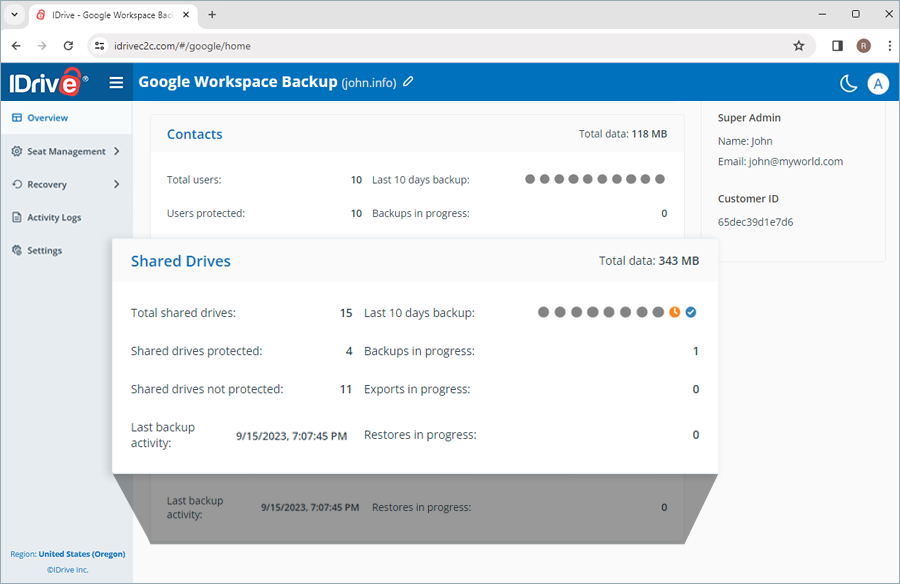
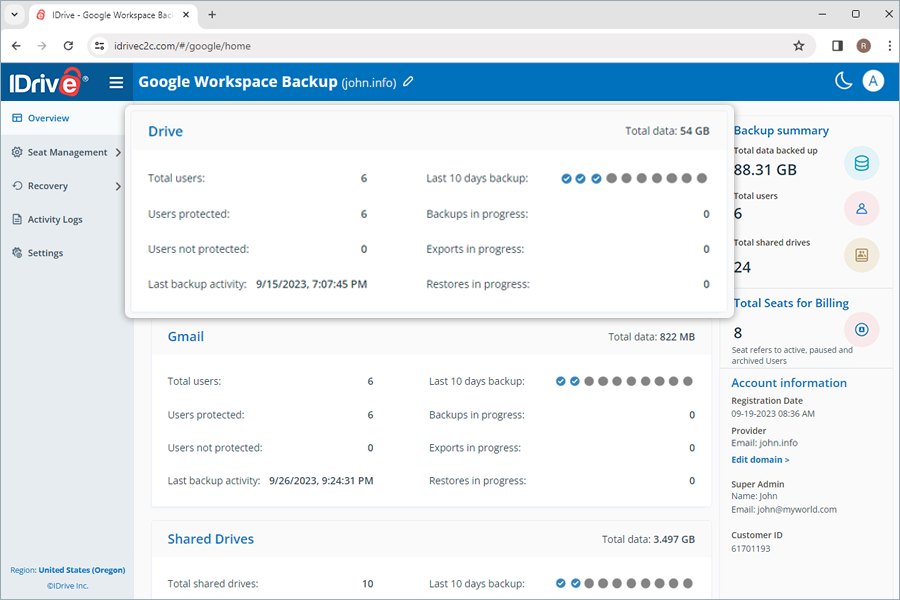
The Overview tab gives you a quick overview of your users' backups, exports, and restores. You can view the summary of the following information across all the Google Workspace Office Suite applications:
- Total users: The total number of active users in your Google Workspace account.
- Users protected: The number of active users added to the backup list and who have completed backup within the last 24 hours.
- Users not protected: Number of active users not included in the backup list.
- Last backup activity: Displays the last date on which every module in the application successfully completed a backup within a 24-hour period.
- Last 10 days backup: This displays the status of the last 10 days, represented by the following icons.
-
 backup failure
 -
 backups were 100% successful
 -
 backup has not yet commenced
 -
 backup was partially successful
-
- Backup in progress: Total number of ongoing backup operations.
- Exports in progress: Total number of ongoing export operations.
- Restore in progress: Total number of ongoing restore operations.
A seat refers to a Google Workspace user. Each seat added to the account is billed as per the subscribed plan.
You can access records of all the users under the Seat Management tab in your Google Workspace Backup web console, regardless of their backup status.
Navigate to the Users or Shared Drives tab under Seat Management to access the following management tools:
- Auto-add: Automatically syncs all the new users/shared drives added to your Google Workspace account.
- Activate all users/Activate all: Activate backup for all unprotected users and shared drives.
- Filter users/shared drives: Filter records for users or shared drives by backup status — active, paused, or unprotected.
- Search users/shared drives: Look up specific users and shared drives among the records.
- Download CSV: Download a list of all the selected users and shared drives in CSV format.
- Manage Drive, Gmail, Contact, Calendar, and Classroom data: Manage specific Drive, Gmail, Contact, Calendar, and Classroom data for a user by clicking on the respective icons


 or
or 
- Backup status: Hover over View details to view the summary of backup status, or click the button to view a detailed backup status summary.
- Backup actions: Pause, add, or remove users and shared drives from the backup set. For details, refer How do I change seat status for users and shared drives?
- Refresh seats: Click this button to refresh the seats. Depending on the Auto-add status, new seats will be added with the corresponding backup status. If auto-add is enabled, the newly discovered seats are automatically protected; if not, they remain unprotected until the user manually changes it.
- Unprotect all: Use this option to unprotect all seats. Unprotected seats will be excluded from daily backups and will not be accessible in the Recovery module.
- Backup all: This feature lets you back up all active seats at once.
You can add and remove users from the backup set, or pause backups by changing their seat status.
To change the seat status for users,
- Go to the Seat Management tab on your Google Workspace Backup dashboard.
- Go to Users.
- In the Backup actions column for the user, set the seat status as required.
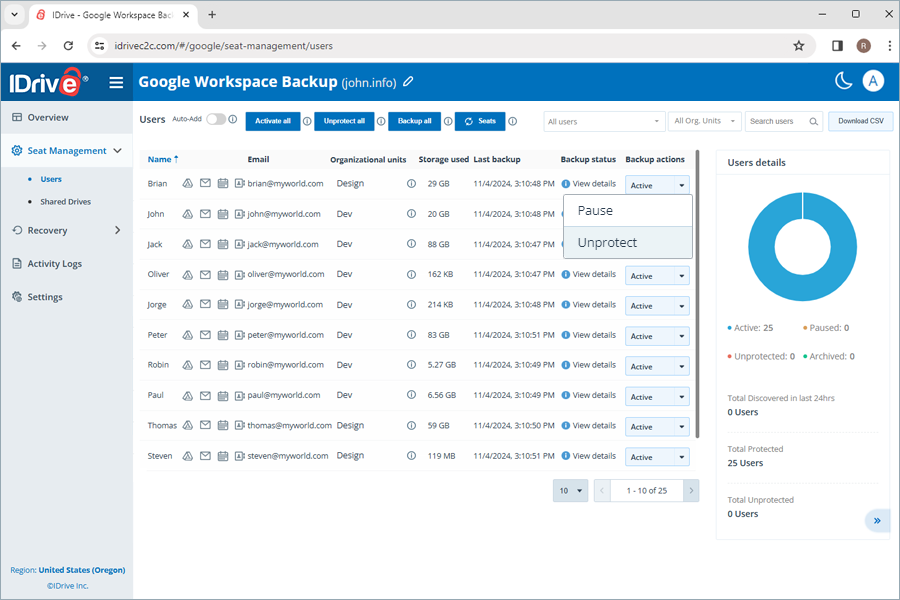
- Pause: Pause the backup for the user or shared drive
- Unprotect: Remove the user from the Google Workspace Backup set
- Protect: Resume/start backup for unprotected/paused users
The status of a user added to the backup set will be displayed as Active.
Note: Changing a user's seat status to Unprotect will delete all backups associated with that user.
Users in your Google Workspace are automatically detected and added to the backup set once you configure your Google account for backup. Auto-add will be enabled by default to protect new users in your Google Workspace.
Depending on the Auto-add status, new seats will be added with the corresponding backup status. If auto-add is enabled, the newly discovered seats are automatically protected, if not, they remain unprotected until the user manually changes it.
To manually add new seats, click  to refresh the data.
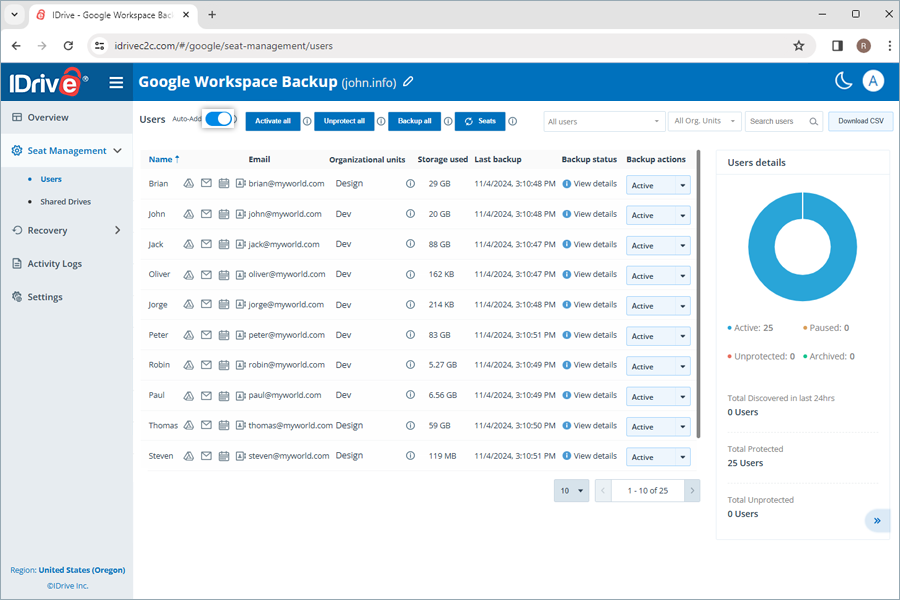
To enable auto-add,
- Go to the Seat Management tab on your Google Workspace Backup dashboard.
- Navigate to the Users tab.
- Enable the toggle switch next to Auto-add.
You can re-add unprotected users to the active backup set by changing their seat status to active.
To activate backup for users who are not included in the backup set,
- Go to the Seat Management tab on your Google Workspace Backup dashboard.
- Navigate to the Users tab.
- Under the Backup actions column next to the paused/unprotected user, select Protect from the dropdown menu.
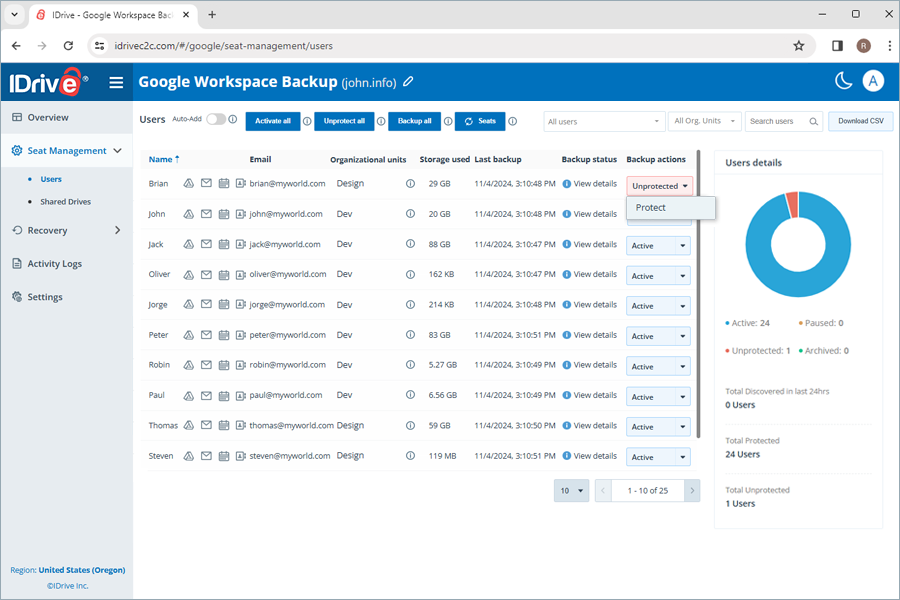
To activate all the unprotected users, click Activate all.
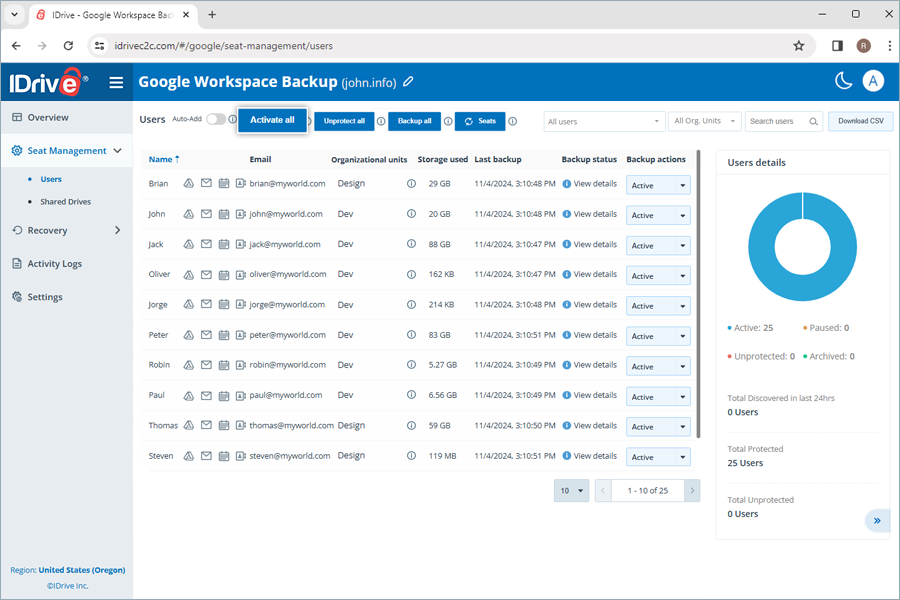
The Backup status next to each user or shared drive provides an overview of their backup results for each module within the past 24 hours. Click View details to view the following backup status parameters for each module:
- Backup status: Success/failure status of the backup in the past 24 hours, denoted by Completed / Failed
- Storage used: Total space occupied by the backup
- Last backup: TimeStamp of the last backup
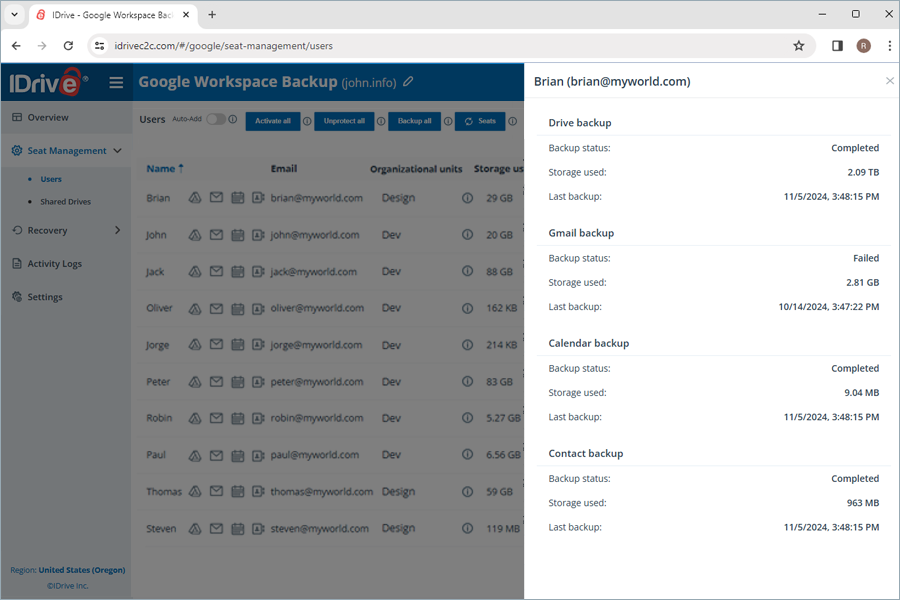
To view the summarized backup status for each module, hover over View Details.
Yes, Google Workspace Backup lets you view and manage seats within each OU.
To manage seats under an OU,
- Go to the Seat Management tab.
- Navigate to the Users tab.
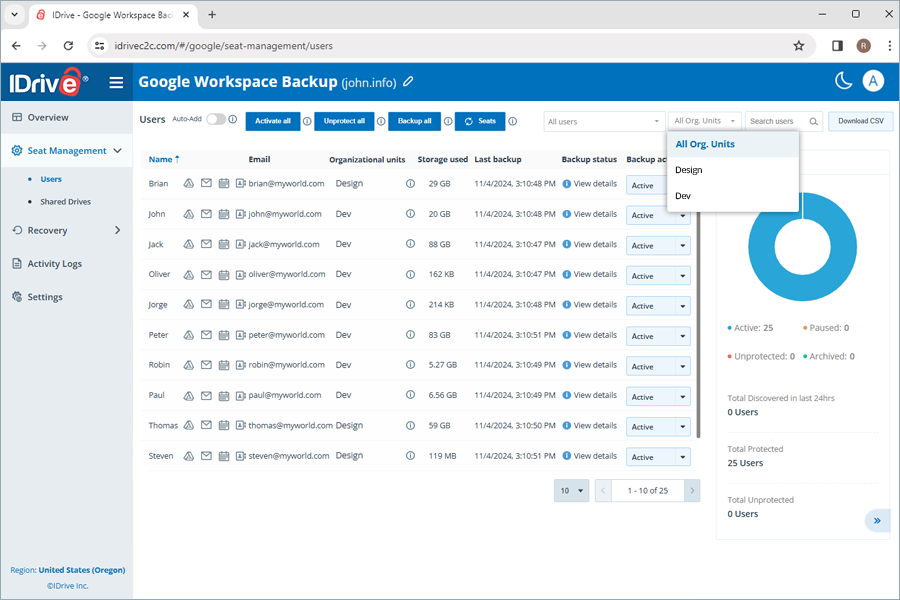
- The Organizational Units column displays the OU to which each seat belongs.
- Select a specific OU from the dropdown to view all the seats belonging to that.
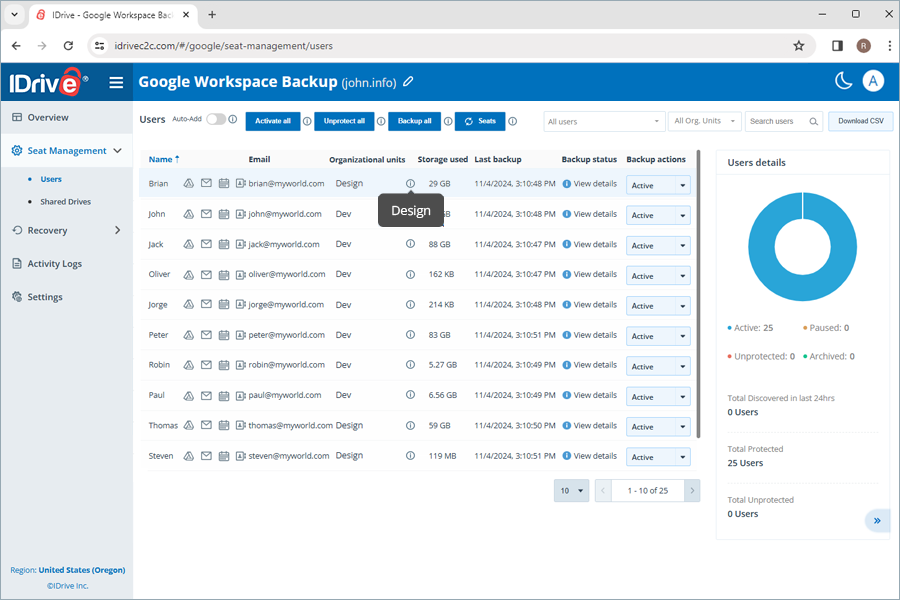
- Hover over
 under each user to see the full OU path.
- Choose Activate all or Unprotect all to apply to all users in the selected OU.
How do I restore the backed-up Drive and Shared Drives data for a specific user from my Google Workspace Backup account?
To restore the backed-up drive and shared drive data,
- Go to the Recovery tab on your Google Workspace backup dashboard.
- Click Drive or Shared Drives.
- Click the user account or shared drive from which you want to restore data.
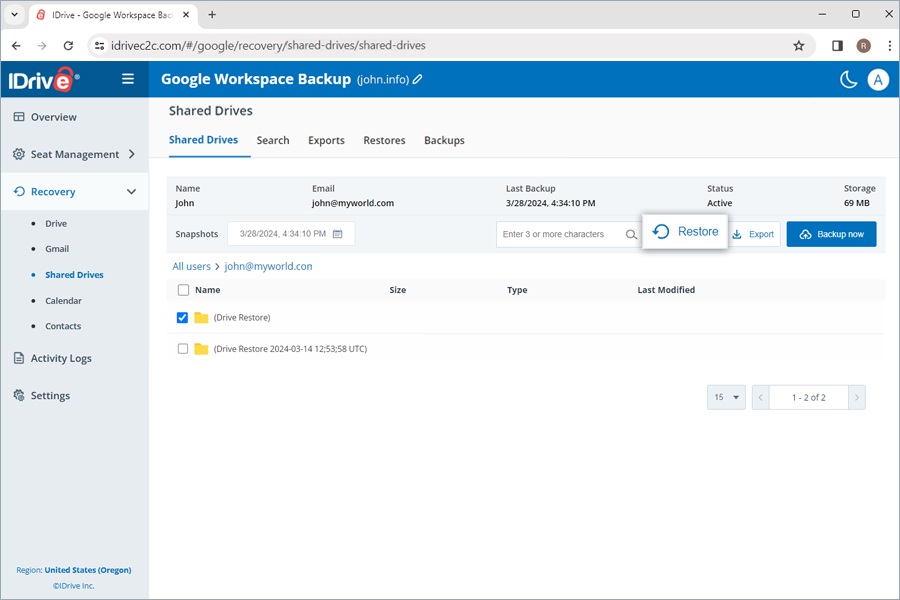
- Select the appropriate recovery point under Snapshots to perform a point-in-time restore. To restore a specific file or folder, select the item from the list of backed-up items. You can also search for a specific file or folder.
- Click Restore. A popup window will appear.
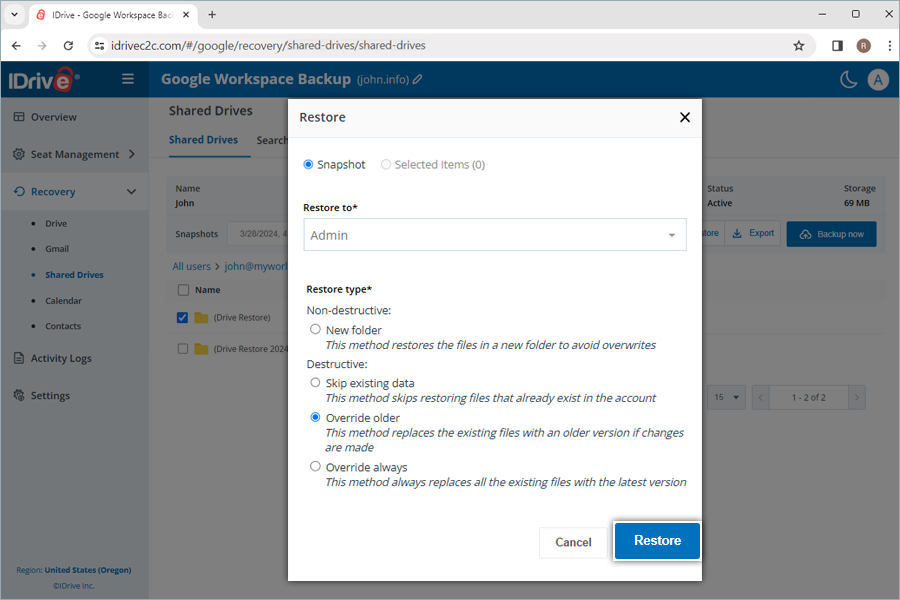
- Select Snapshot or Selected Item as required.
Note: The Selected Item option will be enabled only if you have selected items for restoration. If nothing is selected, Snapshot is selected by default. - Select the user account from the Restore to drop-down menu to which you want to restore the snapshot or the selected item. You can restore the data to the same user account or to a different one.
- Choose a non-destructive or destructive restore method to manage existing files:
- New folder (Non-destructive): This method restores the files to a new folder to avoid overwriting existing files.
- Skip existing data (Destructive): This method skips restoring files that already exist in the account.
- Override older (Destructive): This method replaces the existing files with an older version if changes are made.
- Override always (Destructive): This method always replaces all of the existing files with the latest version.
- Click Restore.
- Click Proceed in the confirmation popup, if you have selected Override older or Override always.
When selecting the non-destructive restore method to create a new folder, a folder named after the restore mode and date will be automatically created at the restore location. A folder (IDrive Restore selection <TimeStamp in UTC>) will be created when restoring selected items. Similarly, a folder (IDrive Restore <TimeStamp in UTC>) will be created for snapshot restore, and a folder (IDrive Restore search:Search_Term <TimeStamp in UTC>) will be created for search-based restore.
How do I restore the backed-up Gmail data for a specific user from my Google Workspace Backup account?
To restore the backed-up email data,
- Go to the Recovery tab on your Google Workspace backup dashboard.
- Click Gmail.
- Click the user account from which you want to restore Gmail data.
- Select Folders to restore email attachments or All Mail to restore email messages.
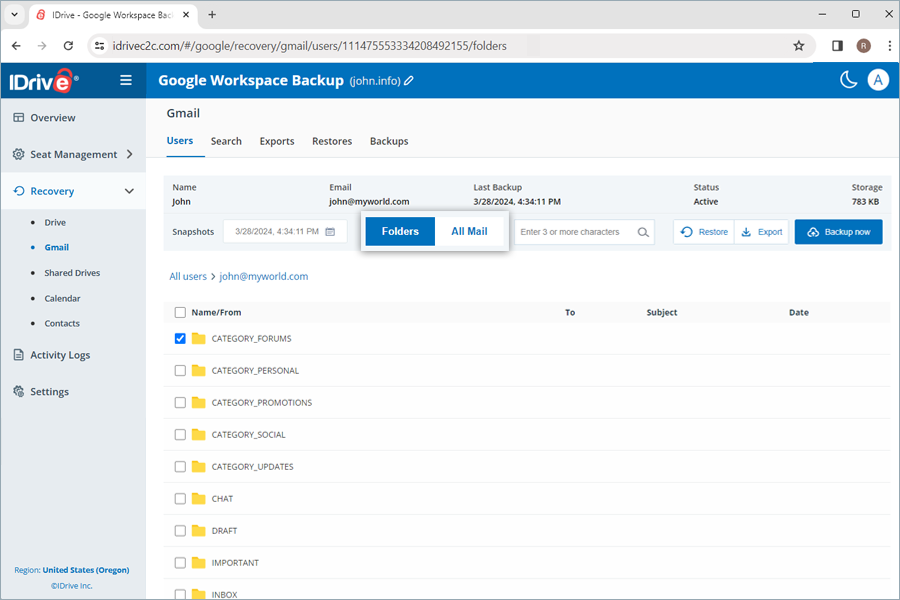
- Select the appropriate recovery point under Snapshots to perform a point-in-time restore. To restore a specific email or folder, select it from the list of backed-up items. You can also search for a specific email or label.
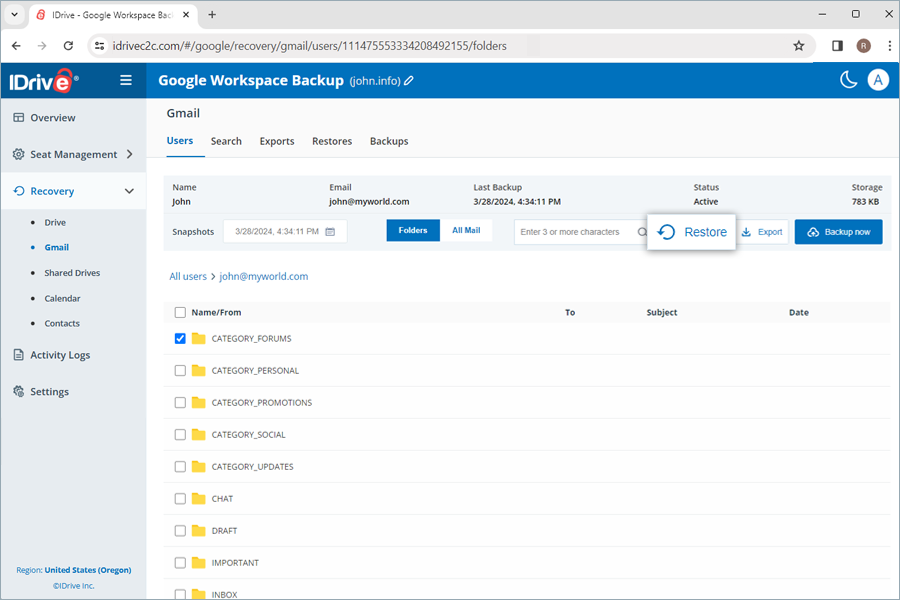
- Click Restore. A popup window will appear.
- Select Snapshot or Selected Items as required.
Note: The Selected Item option will be enabled only if you have selected items for restoration. If nothing is selected, Snapshot is selected by default. - Select the user account from the Restore to drop-down menu to which you want to restore the snapshot or the selected item. You can restore the data to the same user account or to a different one.
- Choose a non-destructive or destructive restore method to manage existing files:
- New folder (Non-destructive): This method restores the mails in a new folder to avoid overwrites.
- Restore to original path (Destructive): This method skips restoring mails that already exist in the account.
- Click Restore.
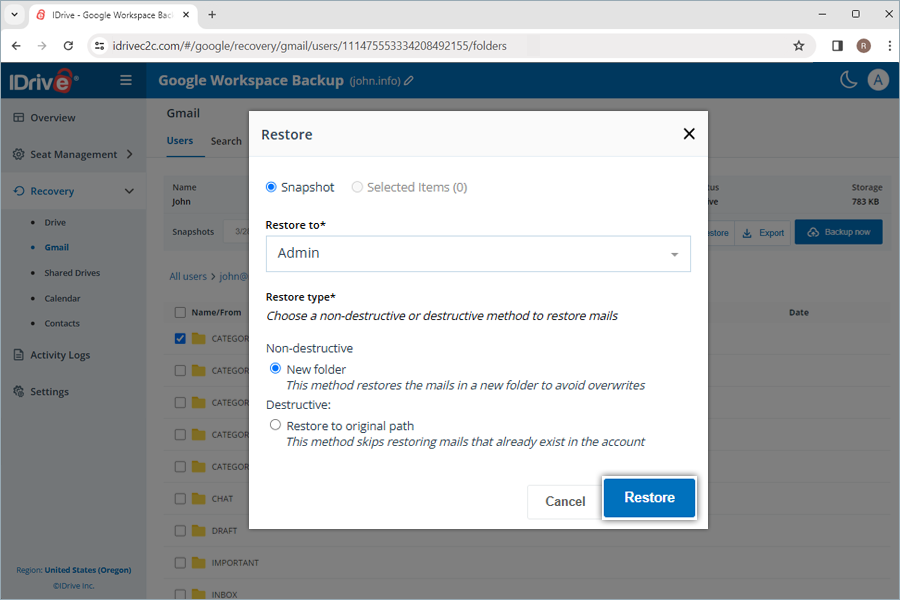
When selecting the non-destructive restore method to create a new folder, a label named after the restore mode and date will be automatically created at the restore location. A label (IDrive Restore selection <TimeStamp in UTC>) will be created when restoring selected items. Similarly, a label (IDrive Restore <TimeStamp in UTC>) will be created for snapshot restore, and a folder (IDrive Restore search:Search_Term <TimeStamp in UTC>) will be created for search-based restore.
How do I restore the backed-up Calendar events for a specific user from my Google Workspace Backup account?
To restore the backed-up calendar events,
- Go to the Recovery tab on your Google Workspace backup dashboard.
- Click Calendar.
- Click the user account from which you want to restore calendar events.
- Select the appropriate recovery point under Snapshots to perform a point-in-time restore. To restore a specific event or folder, select the item from the list of backed-up items. You can also search for a specific event or calendar.
- Click Restore. A popup window will appear.
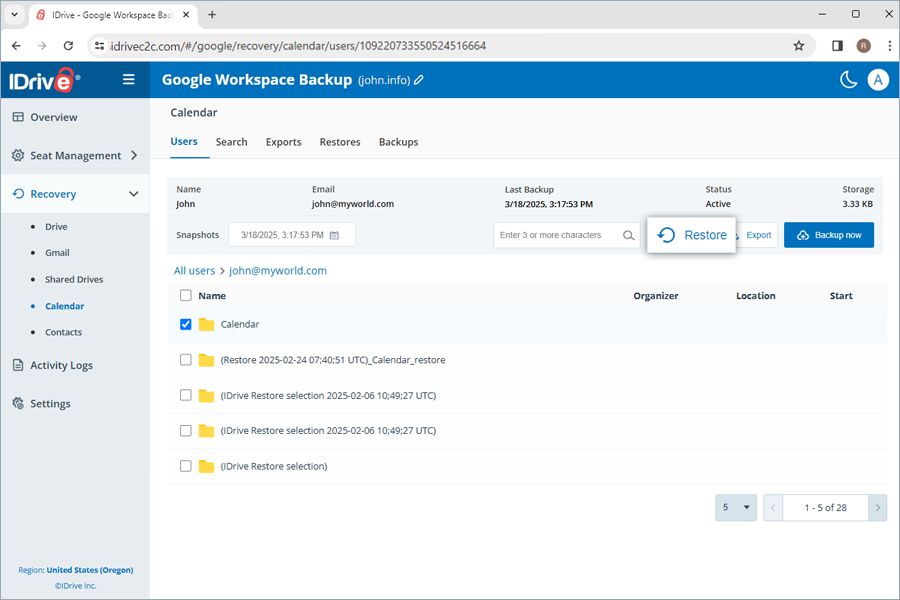
- Select Snapshot or Selected Items as required.
Note: The Selected Item option will be enabled only if you have selected items for restoration. If nothing is selected, Snapshot is selected by default. - Select the user account from the Restore to drop-down menu to which you want to restore the snapshot or the selected item. You can restore the data to the same user account or to a different one.
- Choose a non-destructive or destructive restore method to manage existing files:
- New folder (Non-destructive): This method restores events to a new folder to avoid overwriting the original.
- Skip existing data (Destructive): This method skips restoring events that already exist in the account.
- Override older (Destructive): This method replaces the existing events with an older version if changes are made.
- Override always (Destructive): This method replaces all existing events with the selected version.
- Click Restore.
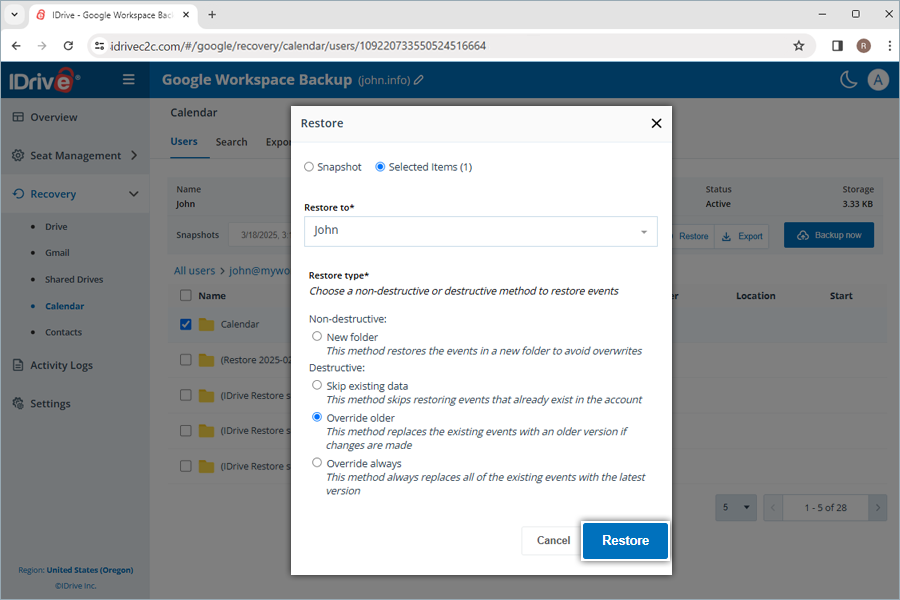
- Click Proceed in the confirmation popup, if you have selected Override older or Override always.
When selecting the non-destructive restore method to create a new folder, a calendar named after the restore mode and date will be automatically created at the restore location. A calendar (IDrive Restore selection <TimeStamp in UTC>) will be created when restoring selected items. Similarly, a calendar (IDrive Restore <TimeStamp in UTC>) will be created for snapshot restore, and a folder (IDrive Restore search:Search_Term <TimeStamp in UTC>) will be created for search-based restore.
Note: Public Calendars are skipped during the restore.
How do I restore the backed-up Contacts for a specific user from my Google Workspace Backup account?
To restore the backed-up contacts,
- Go to the Recovery tab on your Google Workspace backup dashboard.
- Click Contacts.
- Click the user account from which you want to restore contacts.
- Select the appropriate recovery point under Snapshots to perform a point-in-time restore. To restore a specific contact or folder, select the item from the list of backed-up items. You can also search for a specific contact or label.
- Click Restore. A popup window will appear.
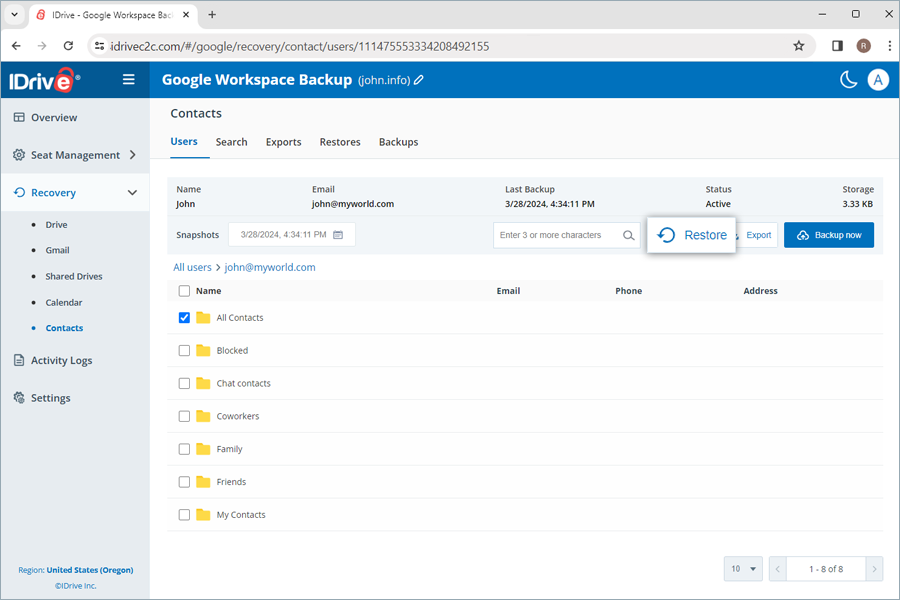
- Select Snapshot or Selected Items as required.
Note: The Selected Item option will be enabled only if you have selected items for restoration. If nothing is selected, Snapshot is selected by default. - Select the user account from the Restore to drop-down menu to which you want to restore the snapshot or the selected item. You can restore the data to the same user account or a different one.
- Choose a non-destructive or destructive restore method to manage existing files:
- New folder (Non-destructive): This method restores contacts to a new folder to avoid overwriting existing ones.
- Skip existing data (Destructive): This method skips restoring contacts that already exist in the account.
- Override older (Destructive): This method replaces the existing contacts with an older version if changes are made.
- Override always (Destructive): This method replaces all existing contacts with the selected version.
- Click Restore.
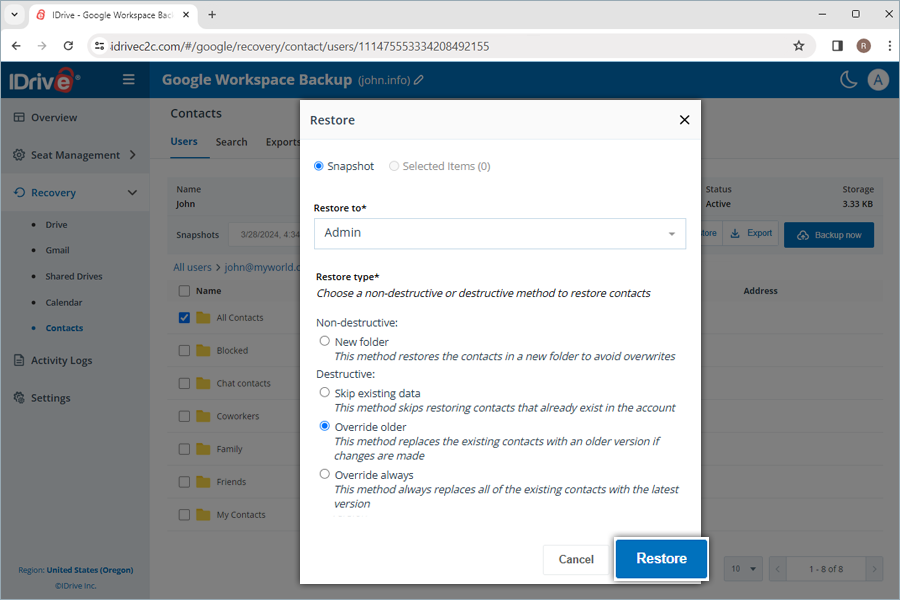
- Click Proceed in the confirmation popup, if you have selected Override older or Override always.
When selecting the non-destructive restore method to create a new folder, a folder named after the restore mode and date will be automatically created at the restore location. A label (IDrive Restore selection <TimeStamp in UTC>) will be created when restoring selected items. Similarly, a label (IDrive Restore <TimeStamp in UTC>) will be created for snapshot restore, and a folder (IDrive Restore search:Search_Term <TimeStamp in UTC>) will be created for search-based restore.
How can I restore the backed-up data associated with my Google Classroom account using the Google Workspace Backup console?
You can restore the backed-up data associated with your Google Classroom account following the steps below.
- In the Classes tab, click any of the classes.
Note: The grid view shows only the classes with backup actions set to Active, Paused, or Archived. The classes with Unprotecting and Unprotected backup actions aren't available in this list. - The details of the specific class appear to include attributes such as the last backup timestamp, status, and storage size.
- The class backups are segregated by announcement, classwork, people, grade, and drive. Select either of these options by clicking their respective buttons.
Note: Backups under the Grade category aren't eligible for restoration. Hence, the Restore button is hidden when this category is selected. - To perform a selective restore of the class data
- Select any of the categories (announcement, classwork, people, drive), and the respective item checkboxes, and click Restore.
- The Restore popup appears. The Selected Items with the item count in brackets and the Skip existing data radio buttons are preselected.
- Click Restore.
Note: For the first restore instance, you are prompted to enter the verification code sent to the account administrator's email address.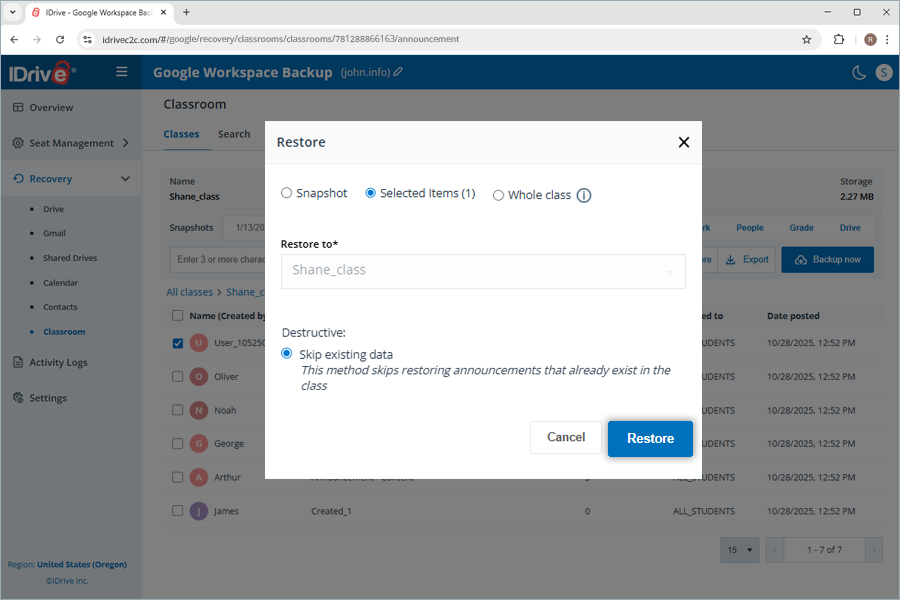
- Click Verify and Restore. The classroom data is restored while skipping the existing data.
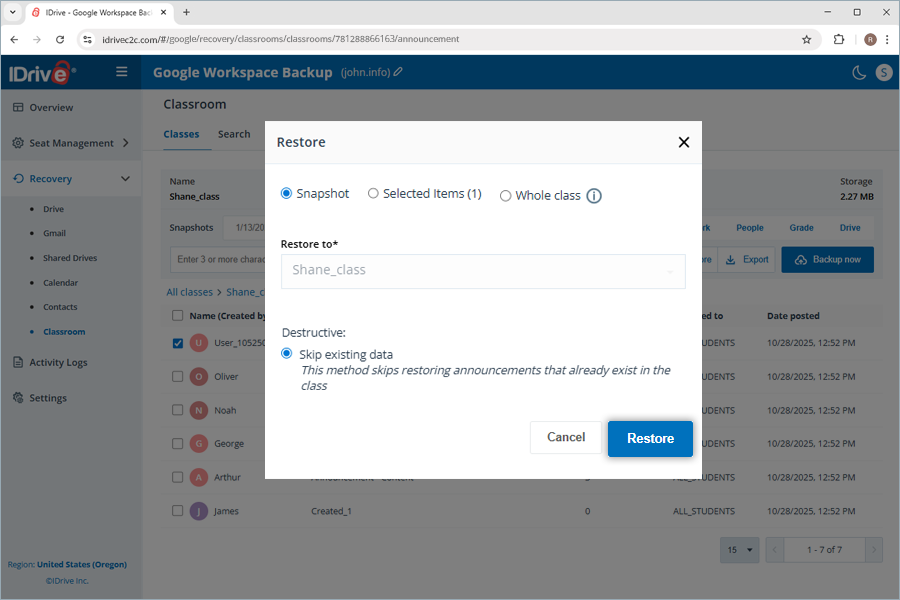
- To perform a snapshot restore,
- Select any of the categories (announcement, classwork, people, drive), and the respective item checkboxes, and click Restore.
- The Restore popup appears. The Snapshot and the Skip existing data radio buttons are preselected.
- Click Restore. The classroom data is restored while skipping the existing data.
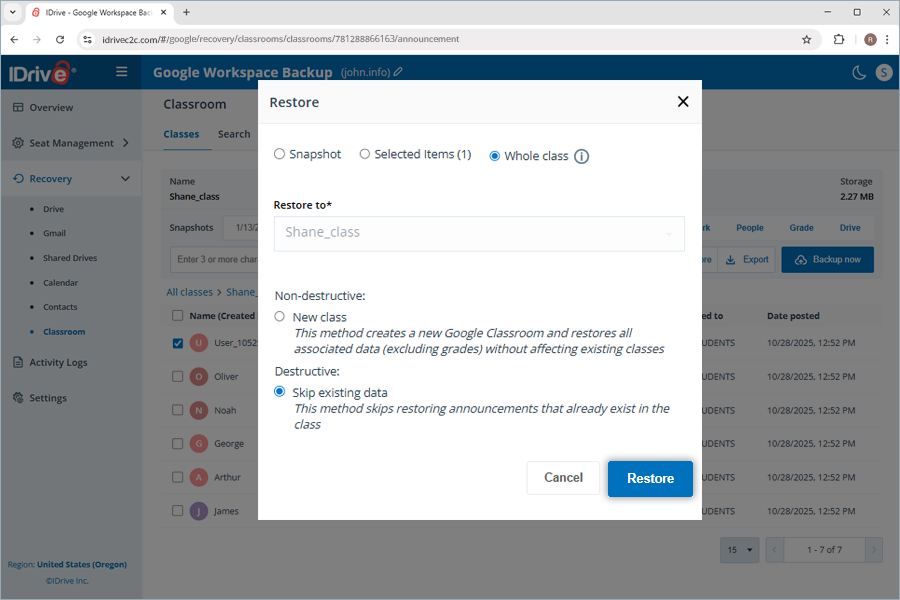
- To perform a whole-class restore,
- Click Restore.
- The Restore popup appears. Select the Whole class radio button.
- Select either of the following radio buttons based on your preference.
- New class
- Skip existing data
- Click Restore.
The classroom data is restored either by skipping the existing data or by creating a new class followed by a timestamp in the native Google Classroom account.
Yes, Google Workspace Backup enables you to search and recover specific files, entire folders, images, videos, emails, and even contacts and calendars at a granular level.
Note: Global search only supports new folder restore.
You can perform both point-in-time and file-level searches across multiple search parameters to perform a granular restore for a specific item.
To perform a point-in-time search for restoring a specific version of the backed-up data from a user account or a shared drive,
- Go to the Recovery tab on your Google Workspace Backup dashboard.
- Select the required application from which you want to restore data.
- Click the user account for which you want to perform the search.
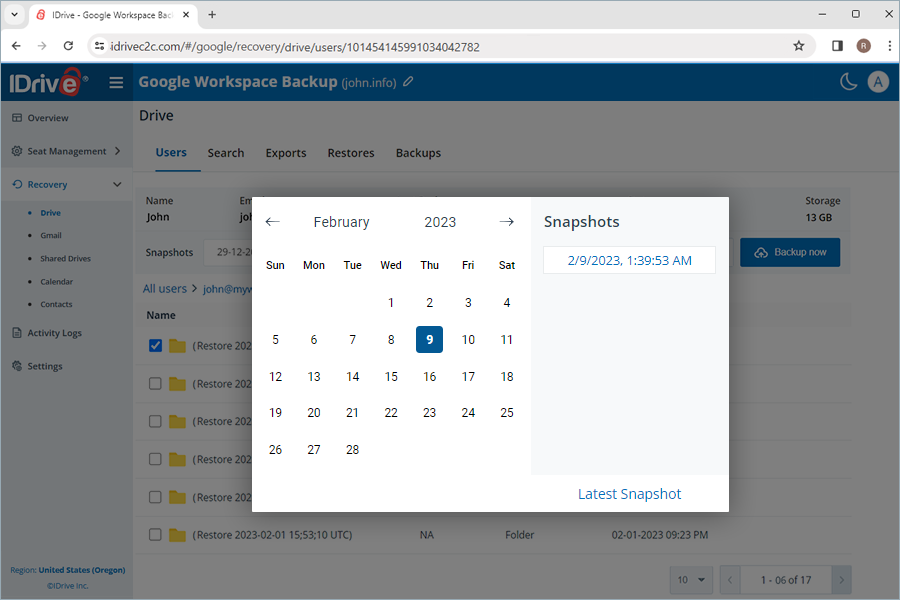
- To search for all the snapshots for a specific data, select the date on the calendar. A list of all the recent snapshots will be displayed on screen. Select the required snapshot. Click Latest Snapshot to find the latest snapshot.
A file-level search enables you to locate specific backed-up files and folders from a user account.
To perform a file-level restore,
- Go to the Recovery tab on your Google Workspace Backup dashboard.
- Select the required application for which you want to restore data.
- Go to the Search tab.
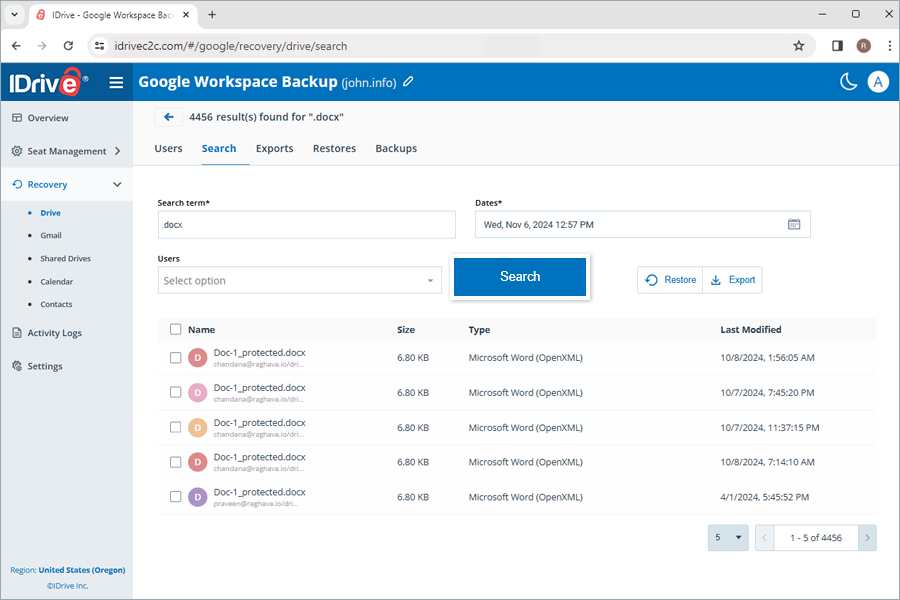
- Enter a valid search term, set the required date and time for snapshots, and select single or multiple users from the dropdown menu. Refer to this FAQ for search terms.
Note: The closest snapshot to the selected TimeStamp will be displayed. - Click Search.
To cancel an ongoing data restore,
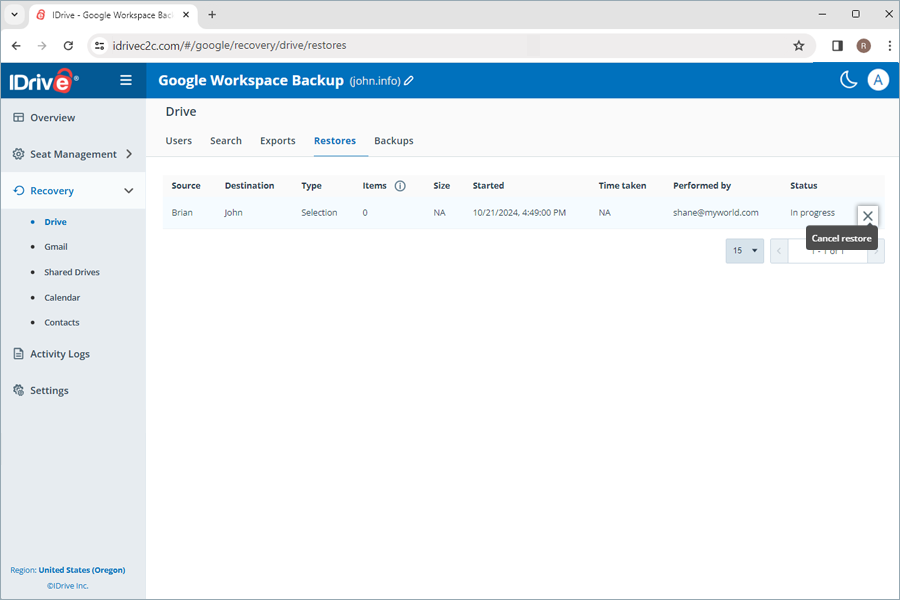
- Go to Recovery and select the required module from the drop-down list.
- Select Restores.
- Click
 to stop the ongoing restore operation.
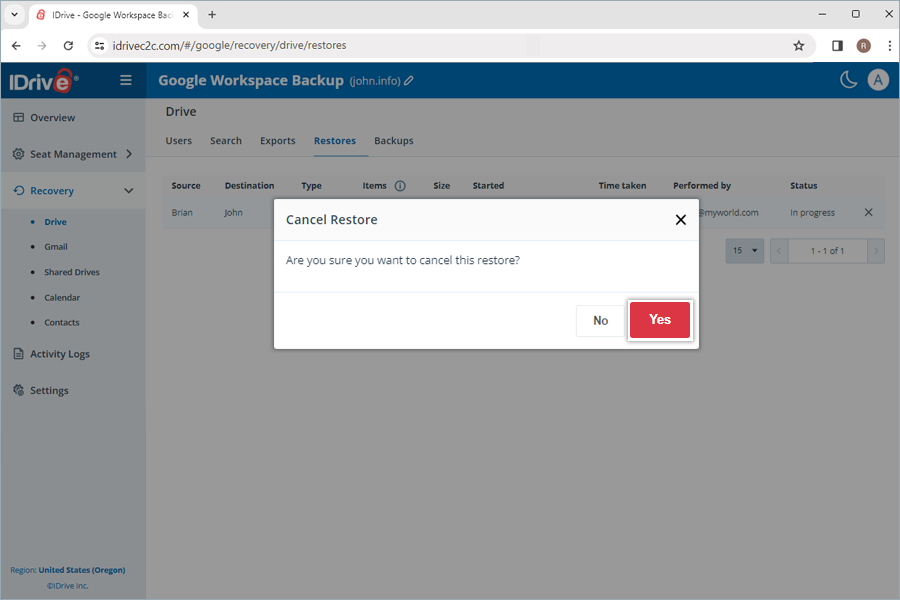
- Click Yes in the confirmation popup.
To export the backed-up data,
- Go to the Recovery tab on your Google Workspace Backup dashboard.
- Select the required application for which you want to export data.
- Click the user account from which you want to export data.
- Select the appropriate snapshot from Snapshots to if you want to perform a point-in-time export. To export a specific file or folder, select the item from the list of backed-up items. You can also search for a specific file or folder.
- Click Export. A popup window will appear.
- Select Snapshot or Selected Item as required.
Note: The Selected Item option will be enabled only if you have selected items for restoration. If nothing is selected, Snapshot is selected by default. - Click Export.
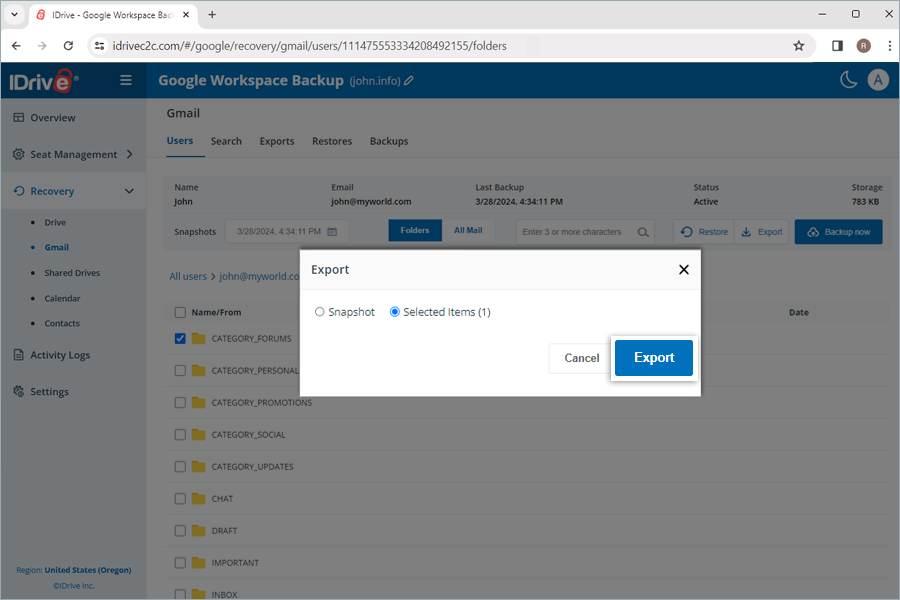
You can download the generated export files in the Exports tab by clicking  next to successful exports. Alternatively, click to delete the exported data.
Note: Exported data will be downloaded as zip files.
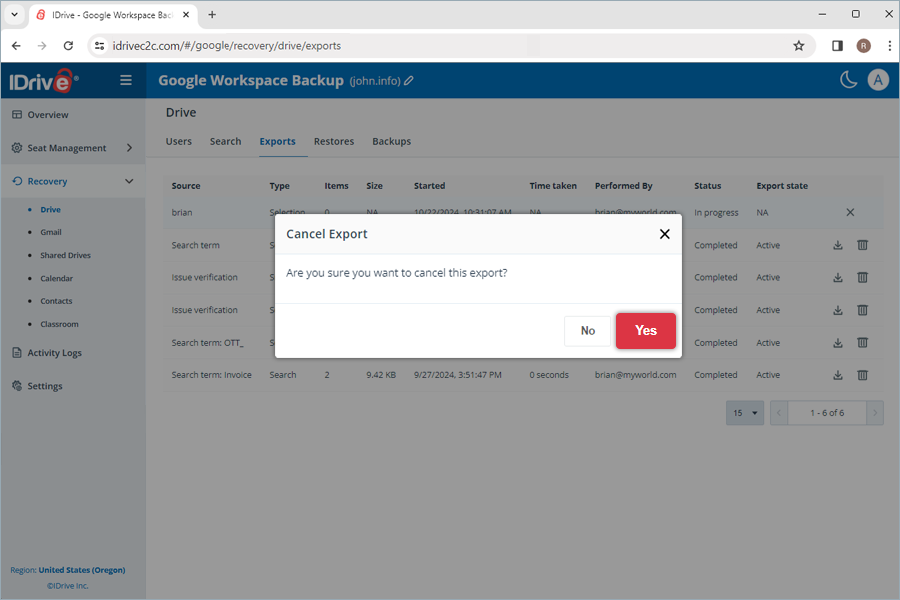
To cancel an ongoing data export, click and click Yes in the confirmation popup.
Google Workspace Backup supports specific search terms for each module, as listed below:
| Module | Search Term |
| Drive | Folder Name/File Name |
| Gmail | Folder Name/Name/From/Subject |
| Shared Drives | Folder Name/File Name |
| Calendar | Folder Name/Event Name |
| Contacts | Folder Name/Contact Name/Email |
| Classroom | Class Name |
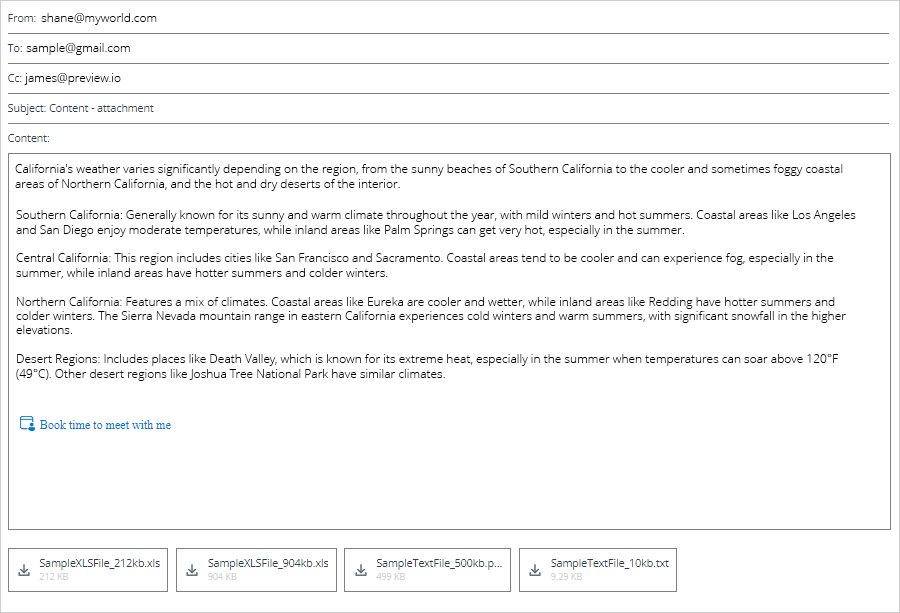
Yes, you can preview the content of any backed-up email. Go to Recovery > Gmail then click the required email. The email content will be displayed in a preview pane. You can download any attachments to your computer.
Yes, you can restore deleted or corrupted files and folders directly to the user account or shared drive. You can also download them on your device while retaining their exact folder structure.
Yes, you can view the logs or generate a summary of scheduled System Events and Admin Actions, such as backups, restores, searches, and manually performed web operations, view All Event Logs, and Web Activity Logs for your in the Activity Logs tab for Google Workspace Backup.
To view activity logs for system-generated automatic backups,
- Navigate to the Activity Logs tab.
- Click System Events.
- Select the Date range. To set a custom start and end date, select Custom range.
- Next, specify the following parameters:
- Event Type: By default, it is set to Scheduled.
- Status: Generate a log for all activities, completed, pending, in progress, and failed events.
- Module: Choose the backed-up service (All, Gmail, Google Drive, Shared Drives, Contacts, Calendar).
- Seat: Generate log for specific user(s)/shared drive(s), or all users/shared drives.
- Click View Event Logs.
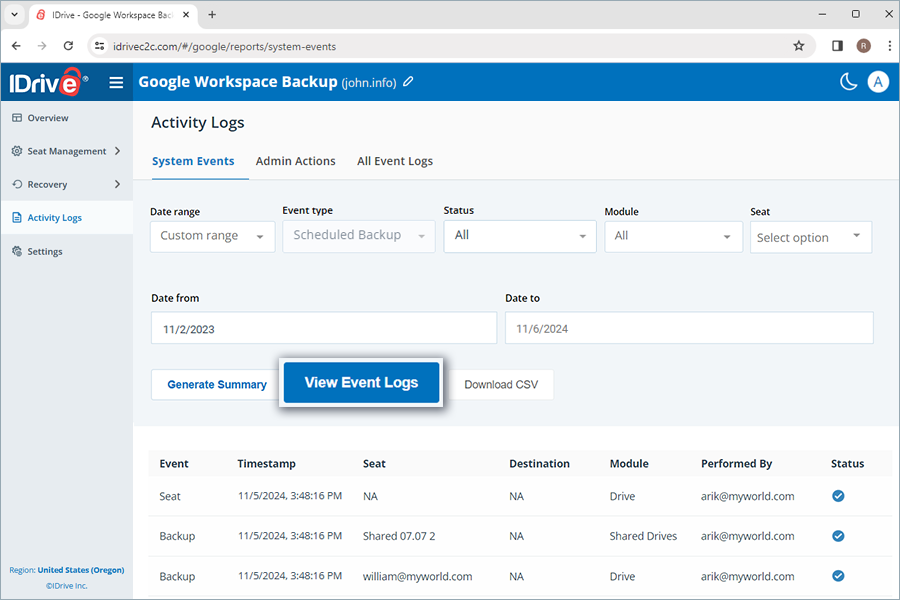
A list of all scheduled backup activities, including Timestamp, seat, module, backup status, event (backup), destination (for restore), and the user who performed it, will be displayed on the screen. You can also view the summary of the hourly and daily events (backup).
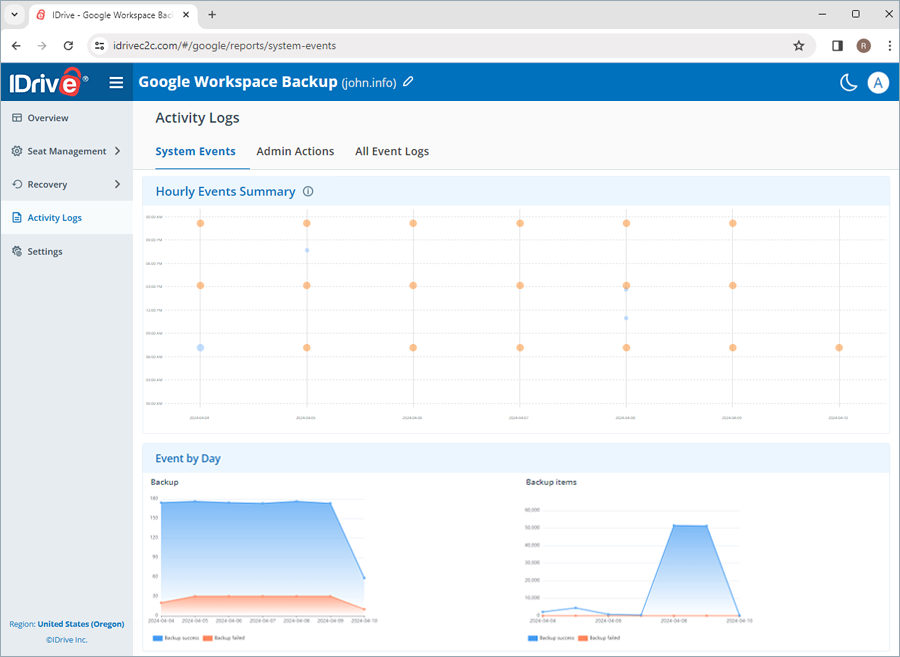
To generate a detailed summary report of the activities, click Generate Summary.
You can also download the activity log reports on your system in CSV format by clicking Download CSV.
To view activity logs for admin-initiated actions,
- Navigate to the Activity Logs tab.
- Click Admin Actions.
- Select the Date range. To set a custom start and end date, select Custom range.
- Next, specify the following parameters:
- Event Type: Select the type of operation (All, backup, export, restore, and search)
- Status: Generate a log for all activities, completed, pending, in progress, and failed events.
- Module: Choose the backed-up service (All, Gmail, Google Drive, Shared Drives, Contacts, Calendar).
- Seat: Generate log for specific user(s)/shared drive(s), or all users/shared drives.
- Click View Event Logs.
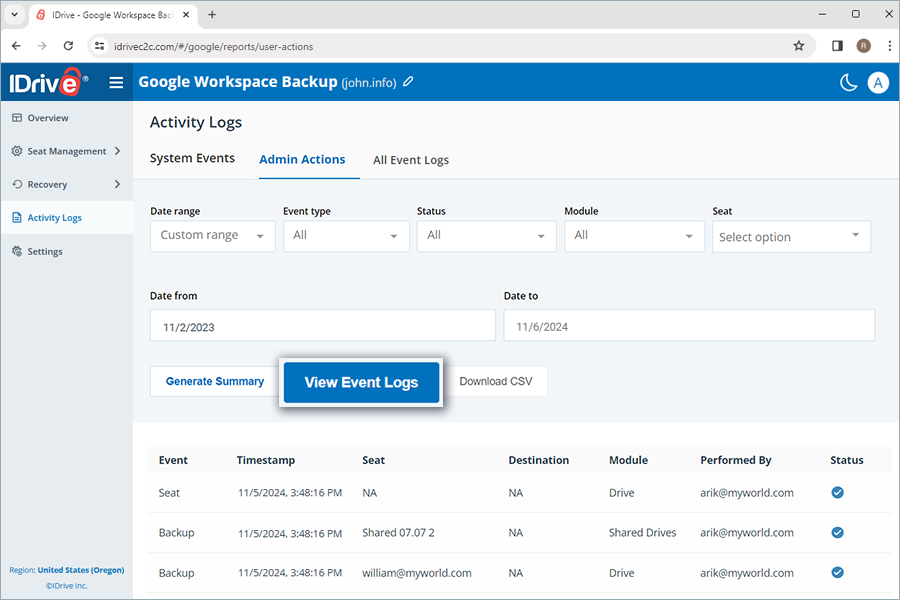
A list of all scheduled backup activities, including Timestamp, seat, module, backup status, event (backup), destination (for restore), and the user who performed it, will be displayed on the screen. You can also view the summary of the hourly and daily events (backup).
You can also download the activity log reports on your system in CSV format by clicking Download CSV.
To view activity log reports for all events,
- Go to the Activity Logs tab on your Google Workspace backup dashboard.
- Click All Event Logs.
- Select the Date range. To set a custom start and end date, select Custom range.
- Next, specify the following parameters:
- Event Type: Select the type of operation (All, backup, export, restore, and search)
- Status: Generate a log for all activities, completed, pending, in progress, and failed events.
- Module: Choose the backed-up service (All, Gmail, Google Drive, Shared Drives, Contacts, Calendar).
- Seat: Generate log for specific user(s)/shared drive(s), or all users/shared drives.
- Click View Event Logs.
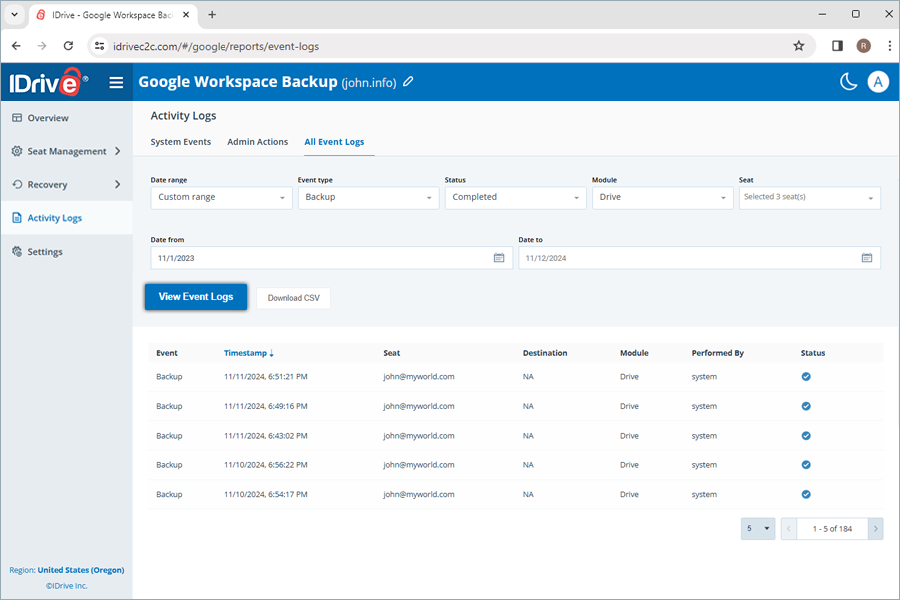
A list of all scheduled backup activities, including Timestamp, seat, module, backup status, event (backup), destination (for restore), and the user who performed it, will be displayed on the screen. You can also view the summary of the hourly and daily events (backup).
To generate a detailed summary report of the activities, click Generate Summary. You can also download the activity log reports on your system in CSV format by clicking Download CSV.
To view web activity log reports for all events,
- Go to the Activity Logs tab on your IDrive® Google Workspace backup dashboard.
- Click Web Activity Logs.
- Select Date range and a particular User activity.
- Click View Web Activity Logs.
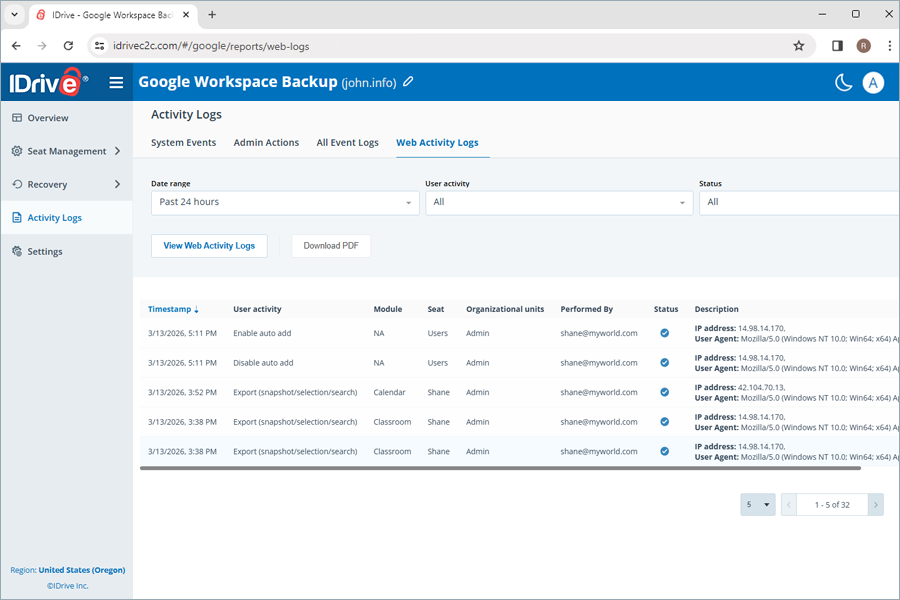
A list of all scheduled and manual system and admin backup activities, including timestamp, user activity, module, seat, and performed by, will be displayed on the screen.
To download the web activity log reports on your machine in PDF format, click Download PDF.